Property Luxe Pro WordPress Theme Documentation
Welcome to the Property Luxe Pro documentation. This guide covers theme installation, one-click demo import, homepage sections, property listings, customizer settings, and shortcodes. For help, see the Support section.
1. Theme Installation & Demo Import
a. Through WordPress Dashboard
- Go to Appearance » Themes and click Add New.
- Click Upload Theme, browse to property-luxe-pro.zip, and click Install Now.
- After installation, click Activate.
property-luxe-pro folder to /wp-content/themes/ via FTP, then activate it under Appearance » Themes.b. One-Click Demo Import (Recommended)
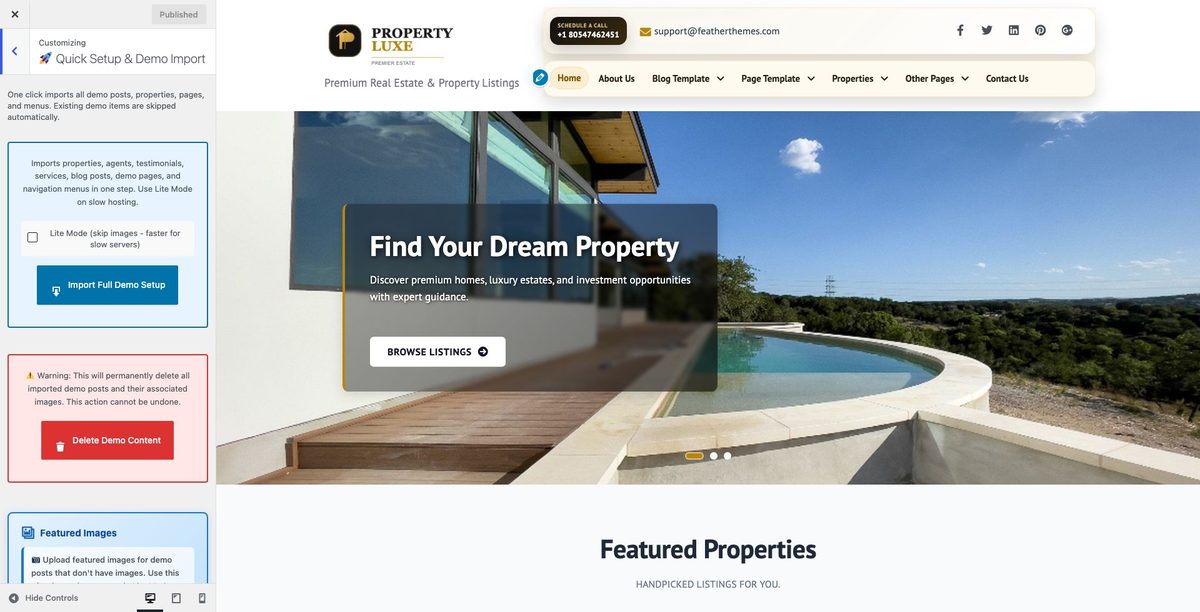
Property Luxe Pro includes a built-in demo importer in the Customizer. No separate XML file is required.
- Go to Appearance » Customize » Quick Setup & Demo Import.
- Click Import Full Demo Setup to import properties, agents, testimonials, services, pages, menus, and theme settings.
- On slow hosting, use Lite Mode first, then run Import Featured Images to attach images afterward.
- Use Delete Demo Content only if you want to remove all imported demo posts (this cannot be undone).
c. After Import — Reading Settings
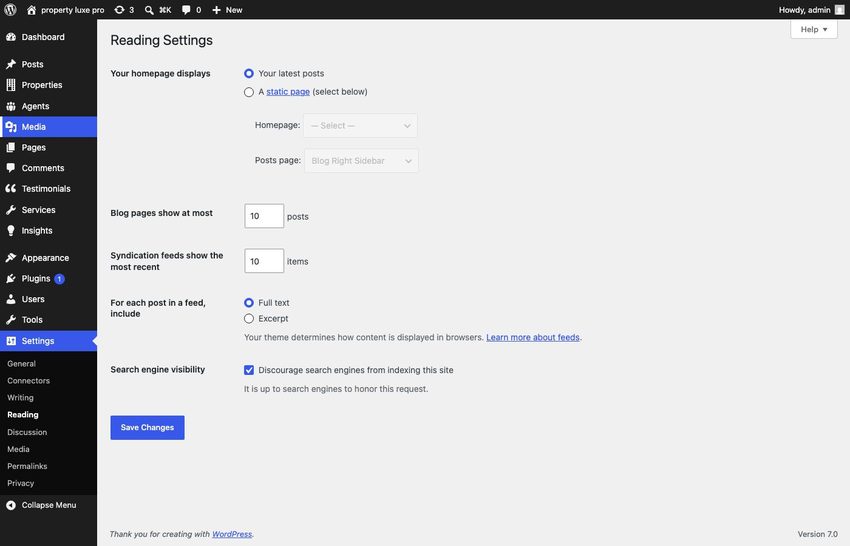
The demo import creates a Front Page and sets it as the static homepage automatically. To verify:
- Go to Settings » Reading.
- Ensure A static page is selected and Front Page is chosen.
2. Homepage Setup
The homepage is built from shortcode-based sections managed in the Customizer. Each section can be enabled, reordered, and styled independently.
- Demo homepage preview:

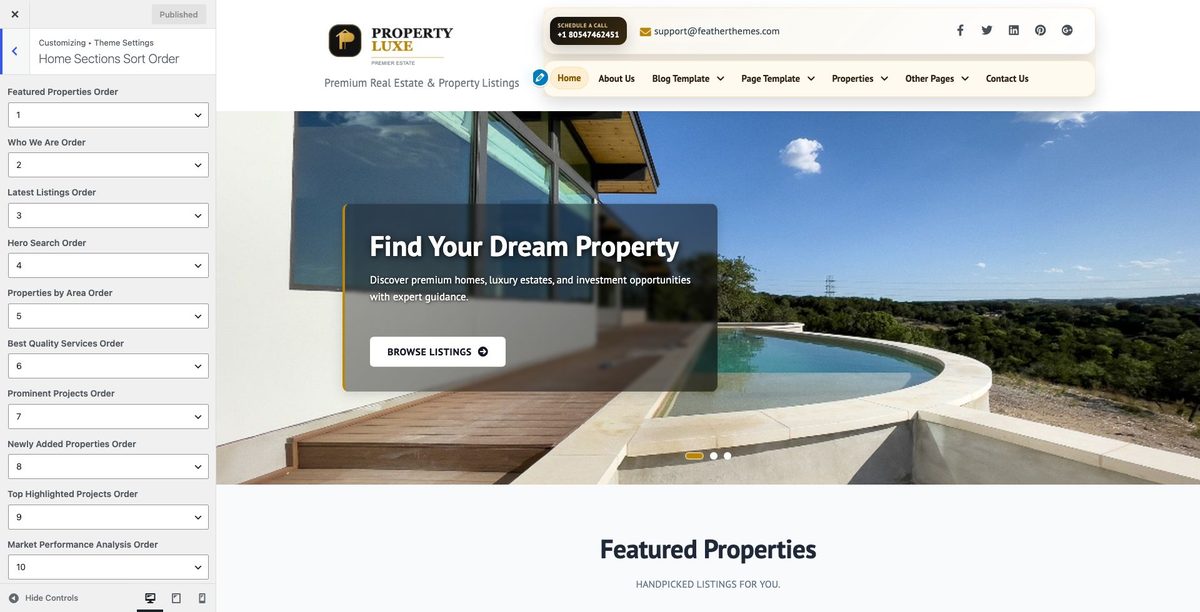
- Reorder sections: Appearance » Customize » Home Sections Settings » Home Sections Sort Order
- Global section styling: Appearance » Customize » Home Sections Settings » Section Styling
3. The Header
The header includes contact info, social icons, logo/site title, and the primary navigation menu.
a. Contact info & social media
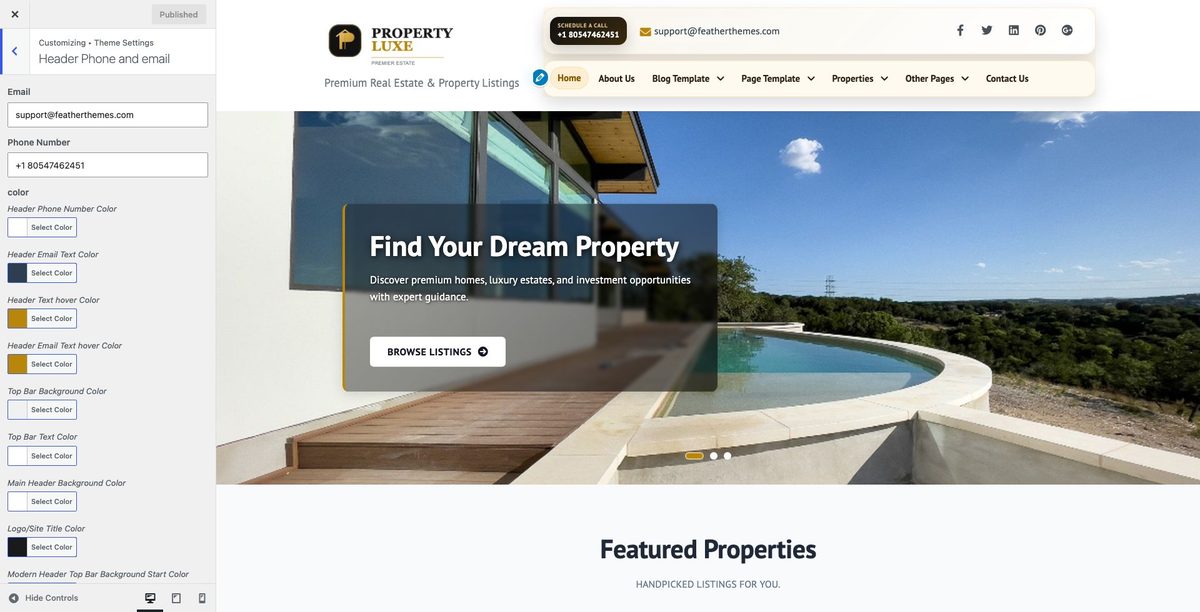
Go to Appearance » Customize » Theme Settings » Header Phone and Email for phone, email, and top-bar text.
For social icons: Appearance » Customize » Theme Settings » Header Social.
b. Site name / logo
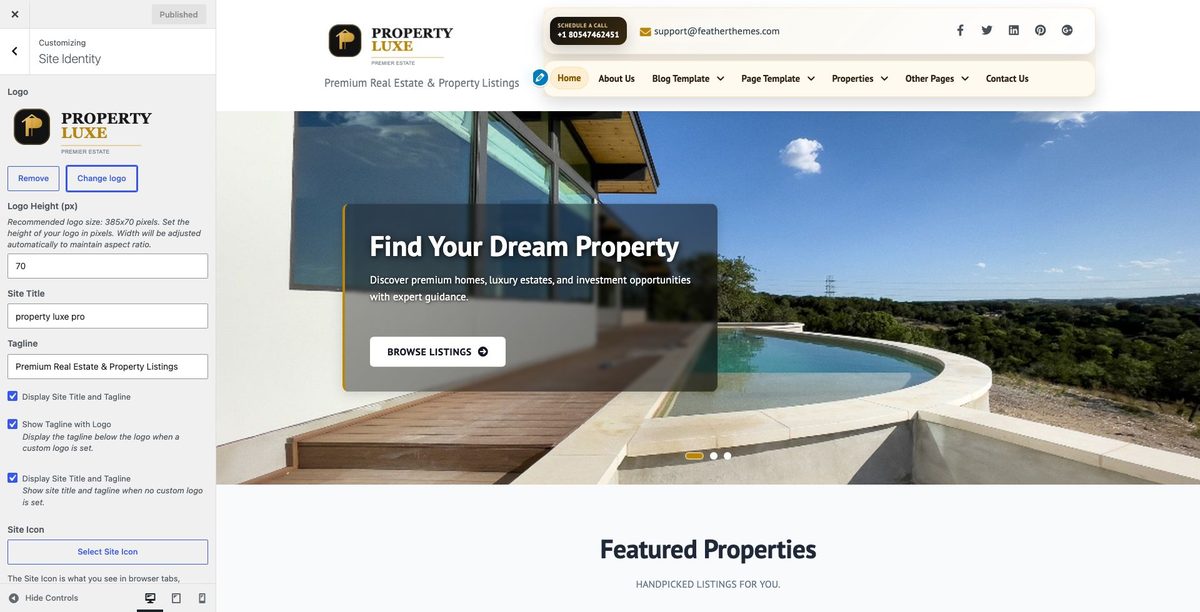
Change site title and tagline under Appearance » Customize » Site Identity.
Upload a logo under Site Identity » Logo. Adjust logo height in Theme Settings » General Settings.
c. Setting the menu
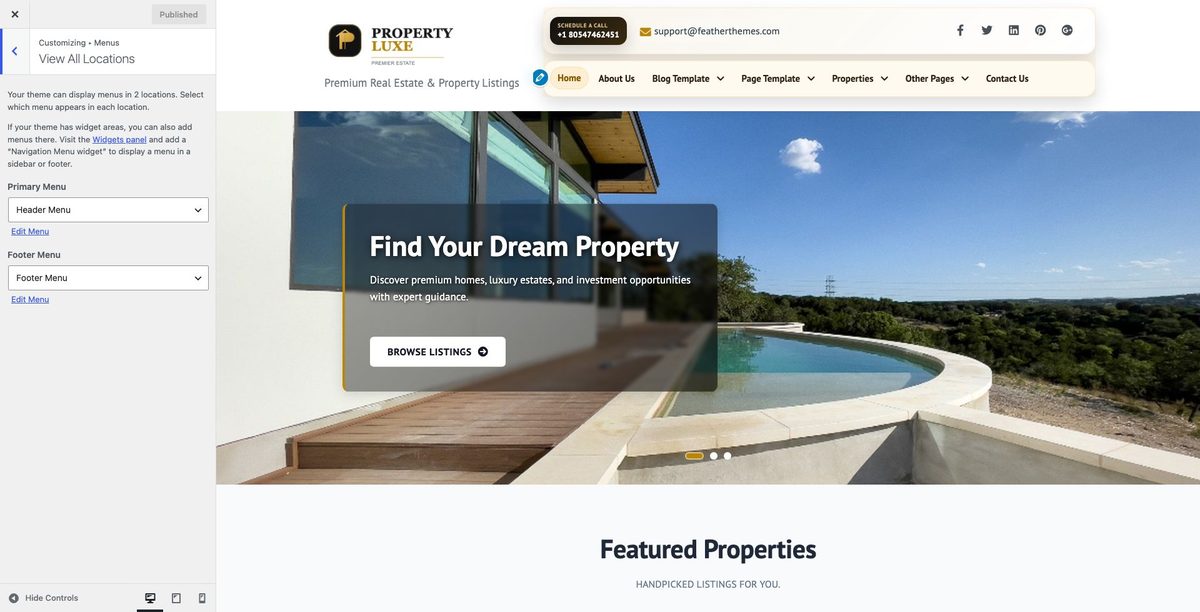
The demo import creates a primary menu with dropdown groups for property pages and other section pages:
- Properties — All Properties (archive), New Properties, Property Listings, Property Search, Sold Properties
- Other Pages — Services, Agents, Testimonial, Real Estate Insights (section archives)
- Top-level items: Home, About Us, Blog Template, Page Template, Contact Us, Shortcodes Demo
- Create pages under Pages » Add New (or use demo-imported pages).
- Go to Appearance » Menus, create a menu, add pages, and assign it to Primary Menu.
- Drag items to nest sub-pages under parent dropdown labels.

4. Homepage Slider
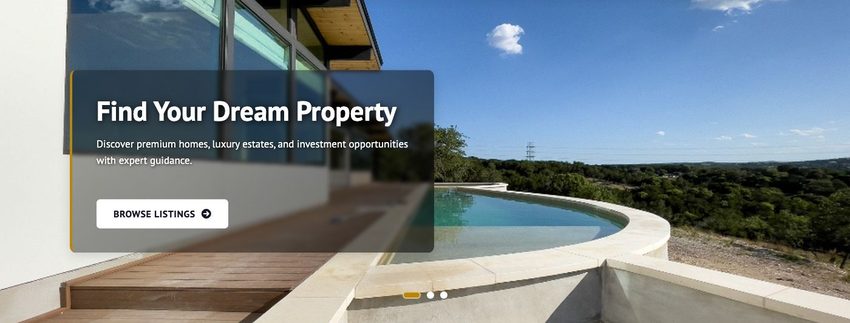
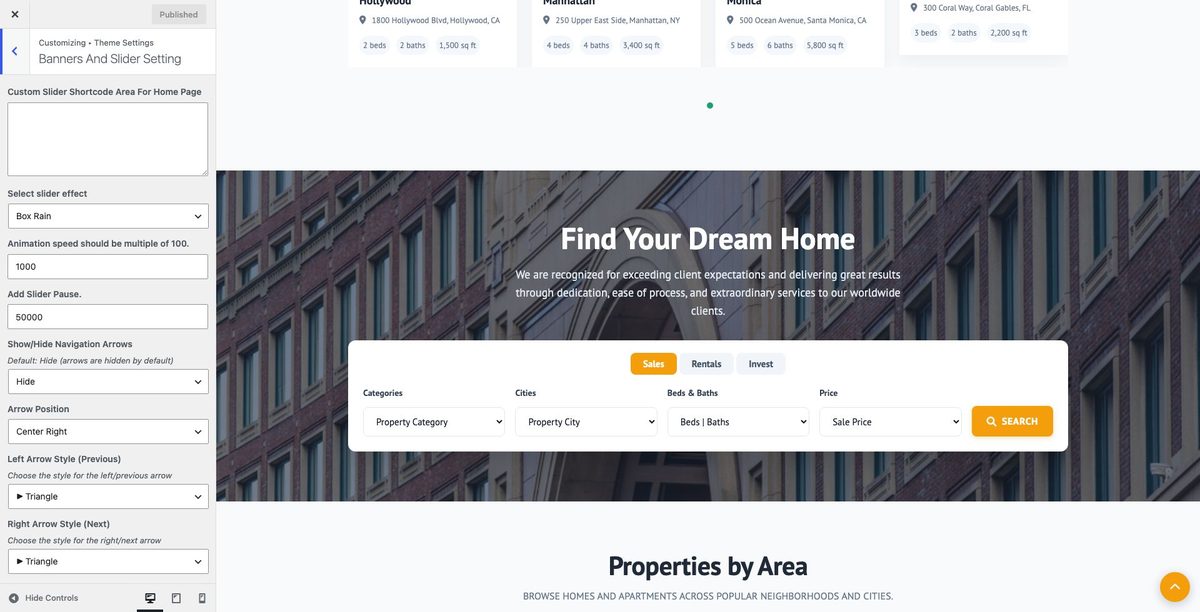
Configure the banner slider at Appearance » Customize » Theme Settings » Banners And Slider Setting.
- Slider effects, timing, animation speed, and pause time
- Show/hide navigation arrows and pager dots
- Pause on hover
- Recommended slide size: 1600 × 550 pixels
- Replace with a plugin slider via Custom Slider Shortcode Area For Home Page
5. Inner Page Banner
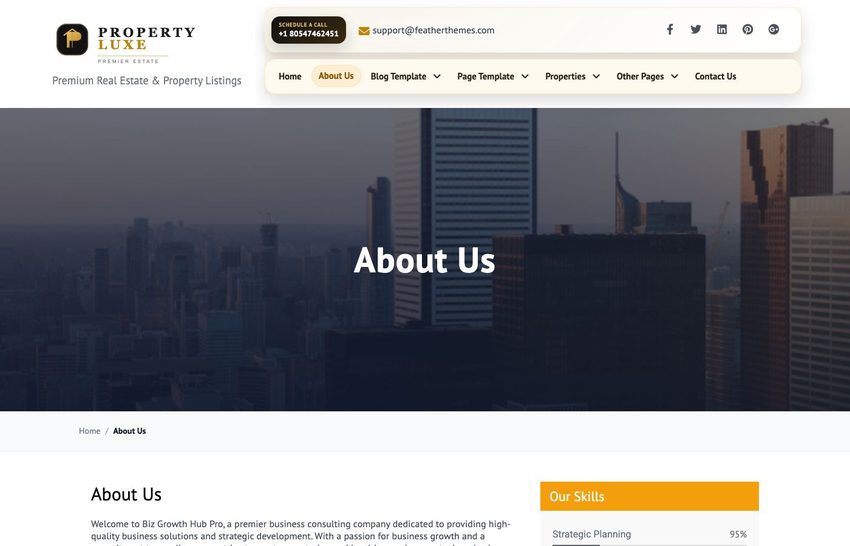
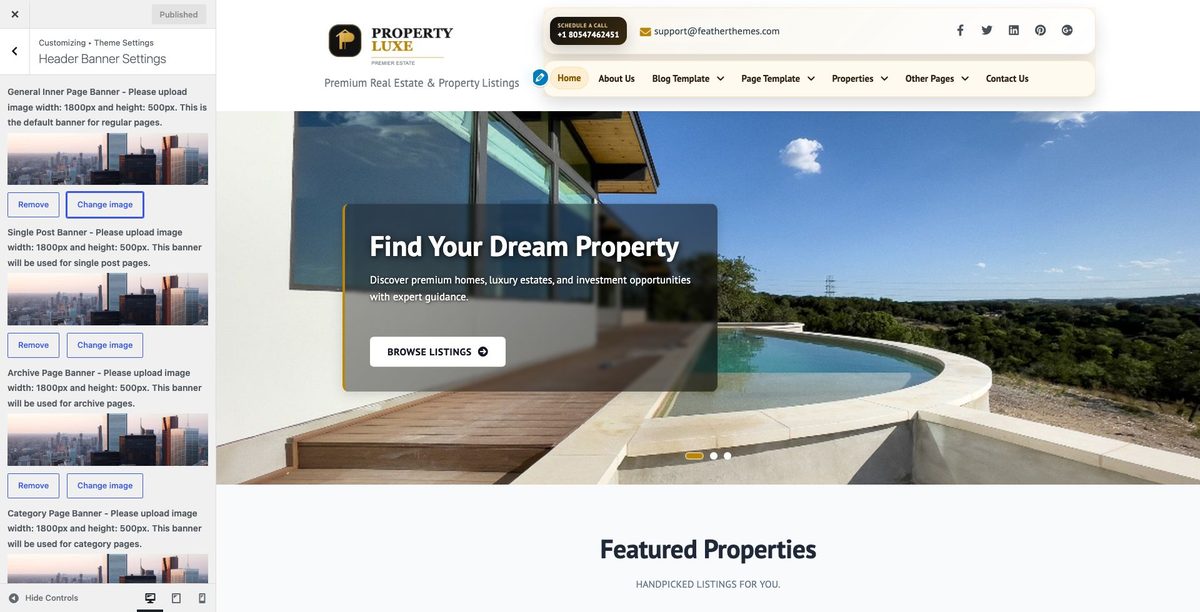
Set the default inner banner at Appearance » Customize » Theme Settings » Header Banner Settings.
For a page-specific banner, set the page Featured Image when editing that page. Recommended size: 1600 × 400 pixels.
6. Homepage Sections
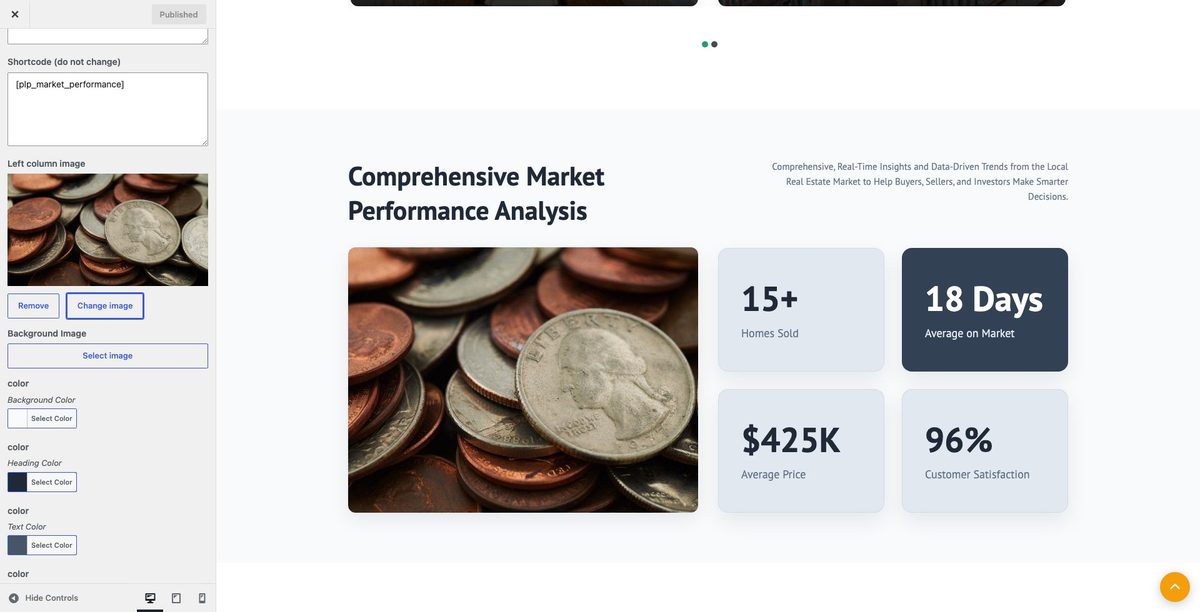
All homepage sections live under Appearance » Customize » Home Sections Settings. Each section uses a shortcode in the section content field. When you select a section in the Customizer (left panel), the live preview (right panel) scrolls to that same section on the homepage.
Each section below includes: Frontend preview, Customizer settings, and—where applicable—the admin post type or archive pages used to manage its content.
Post Types & Taxonomies Overview
The theme registers custom post types and taxonomies for homepage sections. Use the admin menu shown below:
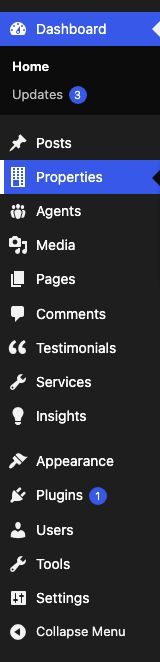
| Homepage Section | Admin Location | What to Manage |
|---|---|---|
| Hero Search | Properties » Categories / Locations | Search filter options |
| Properties By Area | Properties » Property Locations | City/area hierarchy (property_city) |
| Featured Properties | Properties » Add New | Check Featured in Core Listing Info |
| Best Quality Services | Services » Add New | Service cards (plp_service) |
| Latest Listings | Properties » Add New | Publish properties (property_luxe) |
| Expert Agents | Agents » Add New | Agent profiles (property_luxe_agent) |
| Testimonials | Testimonials » Add New | Client quotes (plp_testimonial) |
| Latest Blog | Posts » Add New | Standard WordPress posts |
| Real Estate Insights | Real Estate Insights » Add New | Insight articles (plp_insight CPT with archive & detail pages) |
| Prominent Projects | Properties » Add New | Check Prominent Project |
| Top Highlighted Projects | Properties » Add New | Check Top Highlighted |
| Featured Neighborhoods | Properties » Property Categories | Category cards (property_category) |
| Contact / Market / Areas / Who We Are | Customizer only | Text, colors, and images in Customizer |
1. Hero Search
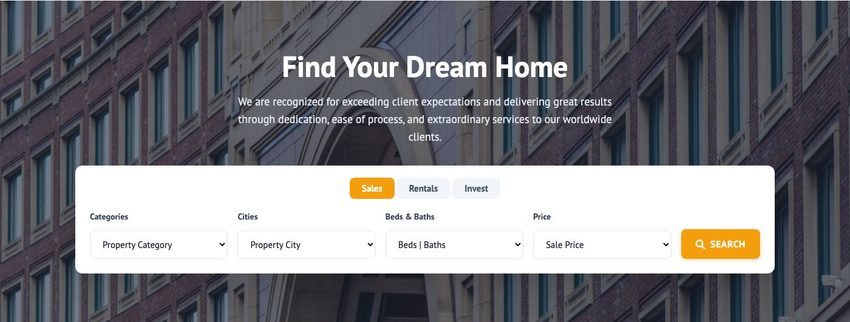
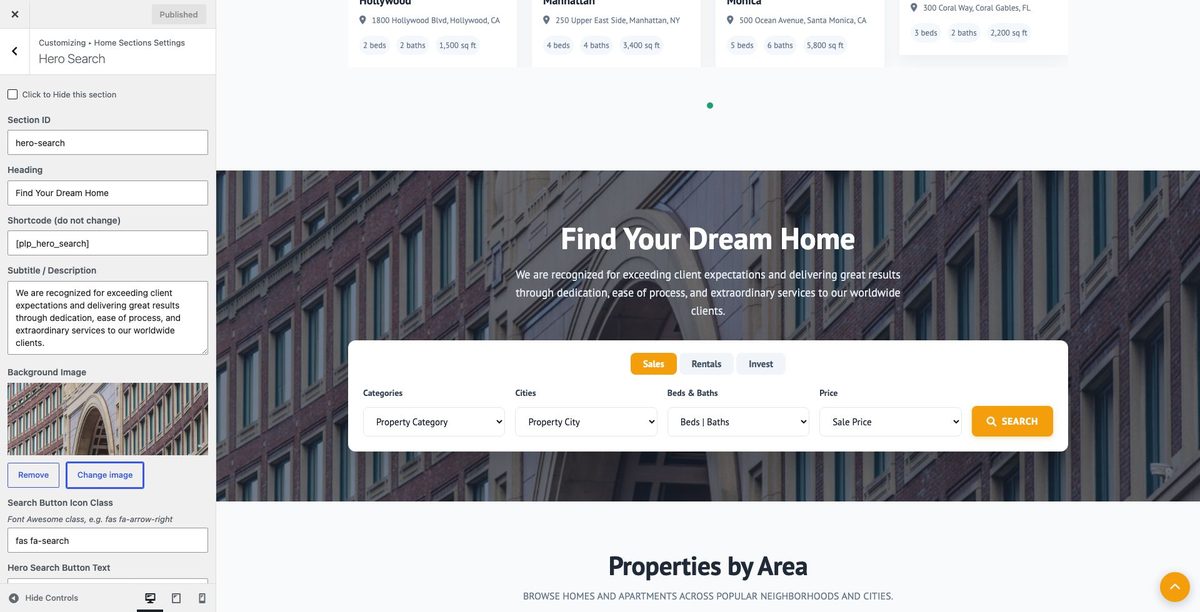
Hero banner with property search form (keyword, category, city, price range). Search filters use Property Categories and Property Locations taxonomies.
- Customizer: Home Sections Settings » Hero Search
- Shortcode:
[plp_hero_search]
- Post type: No dedicated CPT — manage taxonomies under Properties » Categories / Locations
Customizer (controls + live preview):
2. Properties By Area
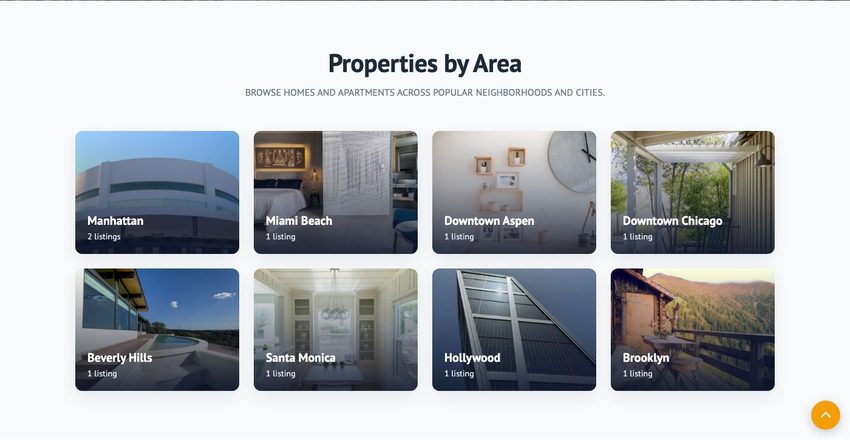
Grid of location/area cards linking to property city archives.
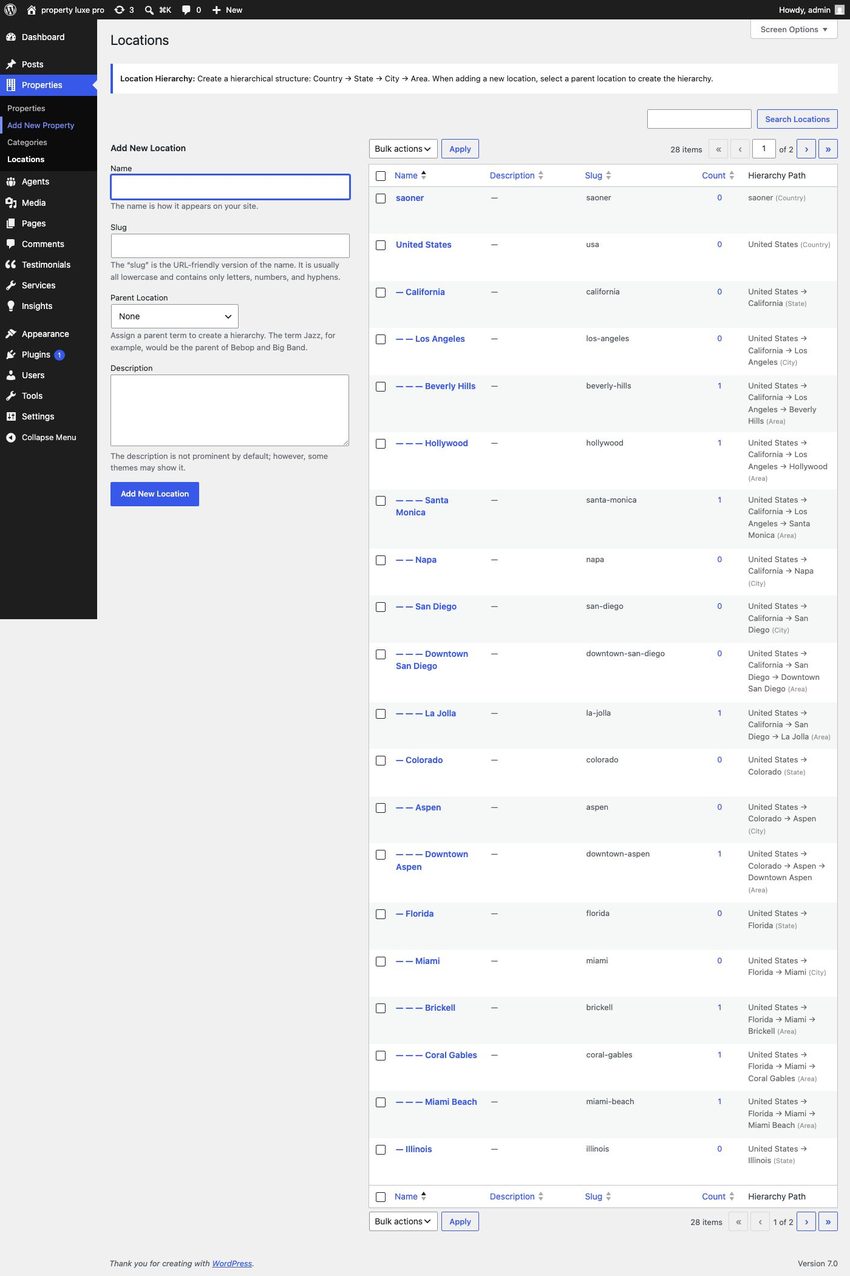
- Manage locations: Properties » Property Locations (hierarchical taxonomy
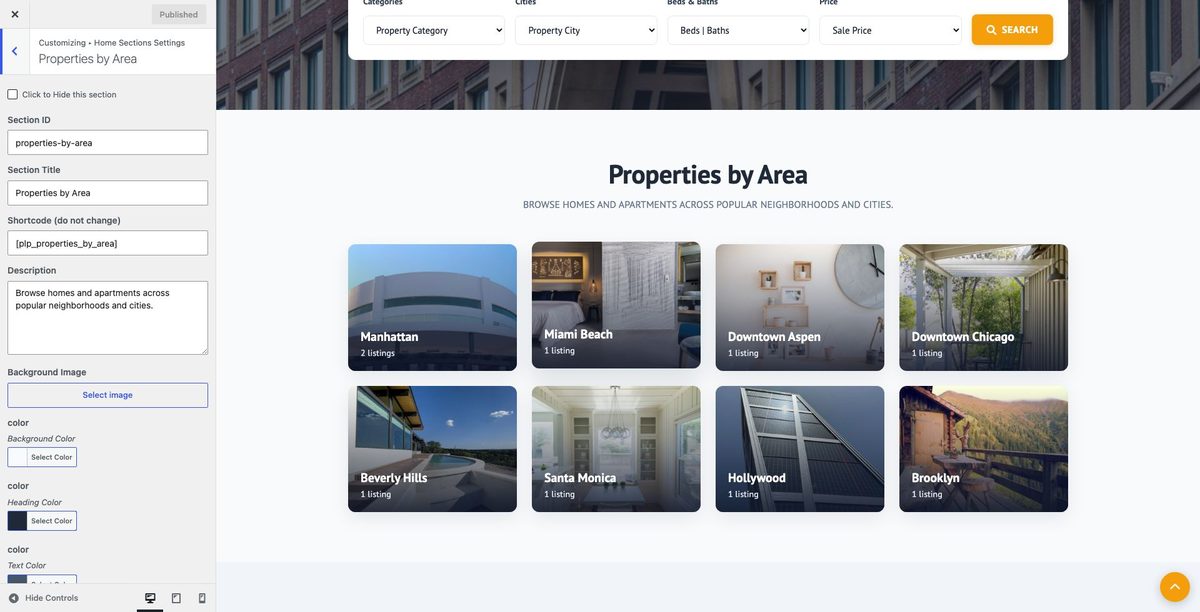
property_city) - Customizer: Home Sections Settings » Properties by Area
- Shortcode:
[plp_properties_by_area]
Customizer:
Post type / taxonomy admin:
3. Featured Properties
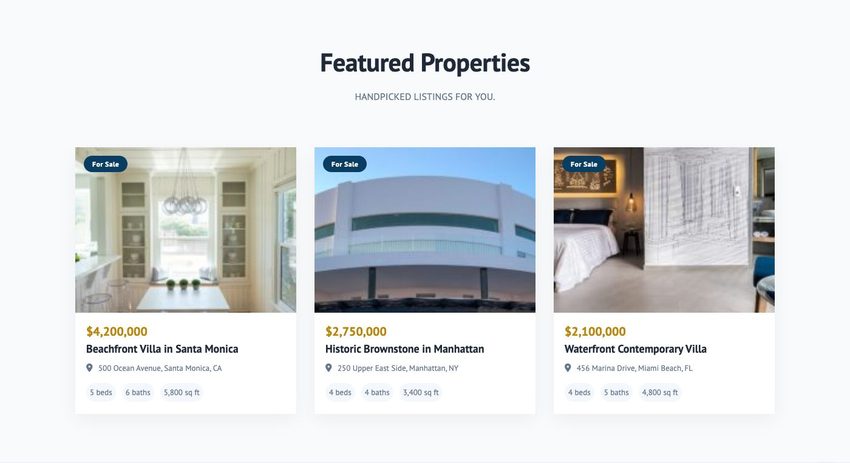
Grid of properties marked as Featured in the property editor.
- Add/edit properties: Properties » Add New (
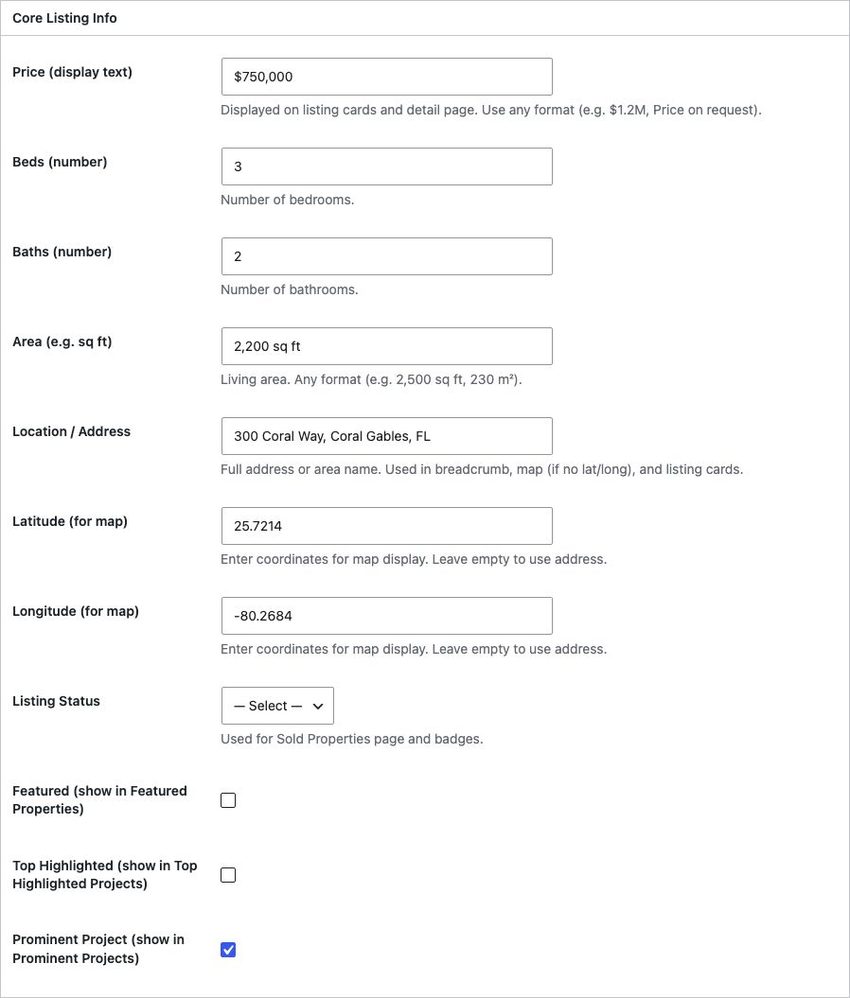
property_luxe) - Check Featured in Core Listing Info
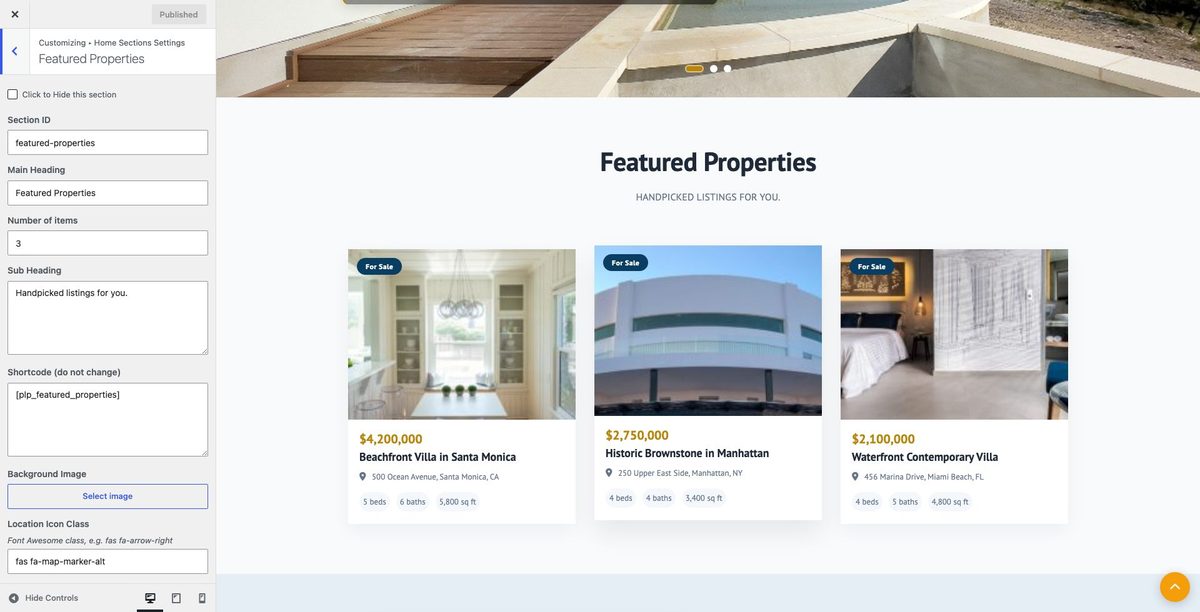
- Customizer: Home Sections Settings » Featured Properties
- Shortcode:
[plp_featured_properties]
Customizer:
Post type admin (Featured checkbox):
4. Best Quality Services
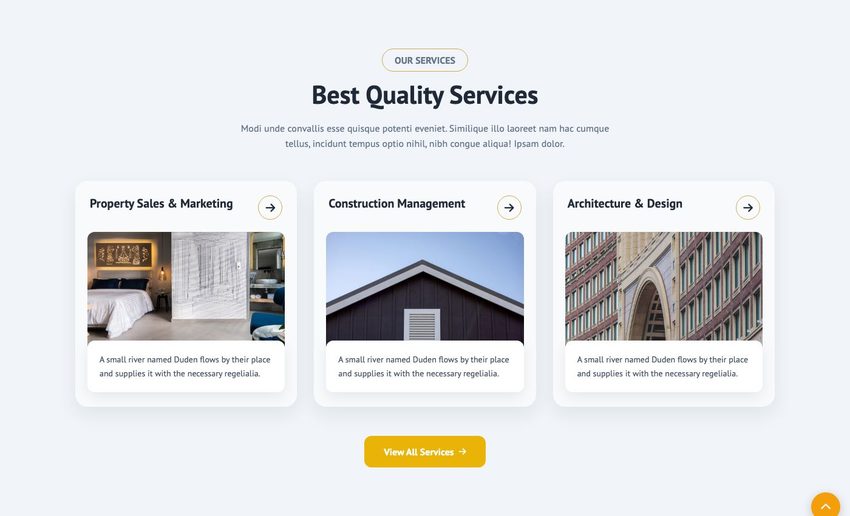
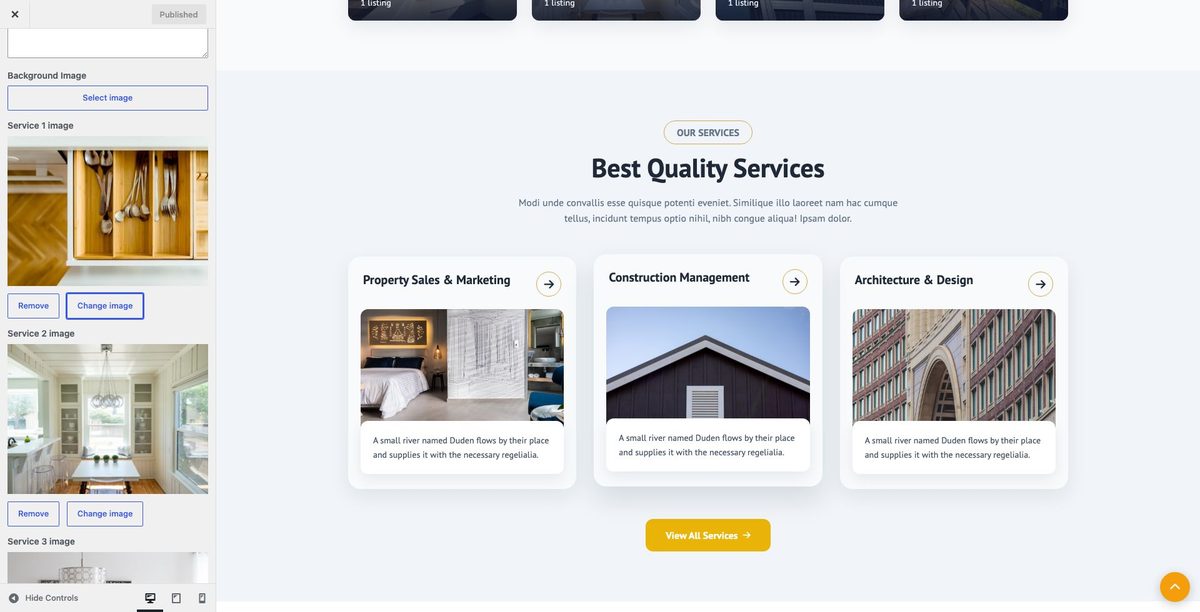
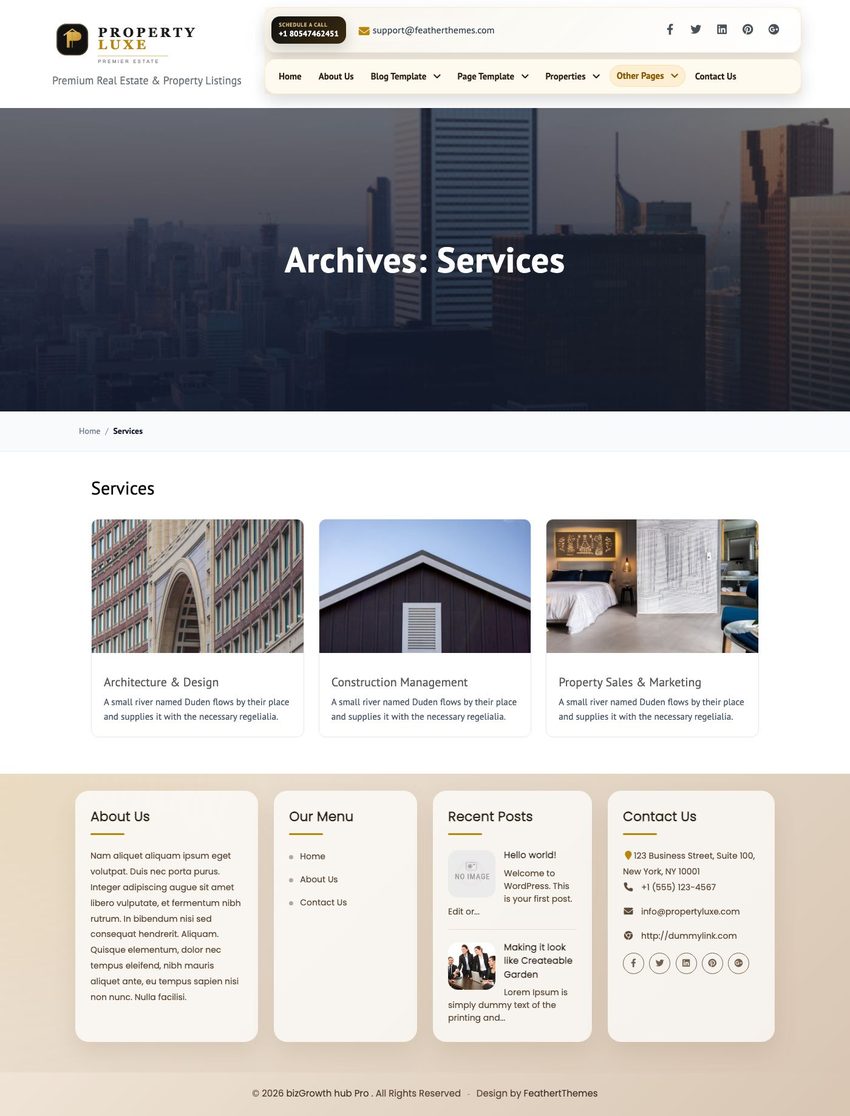
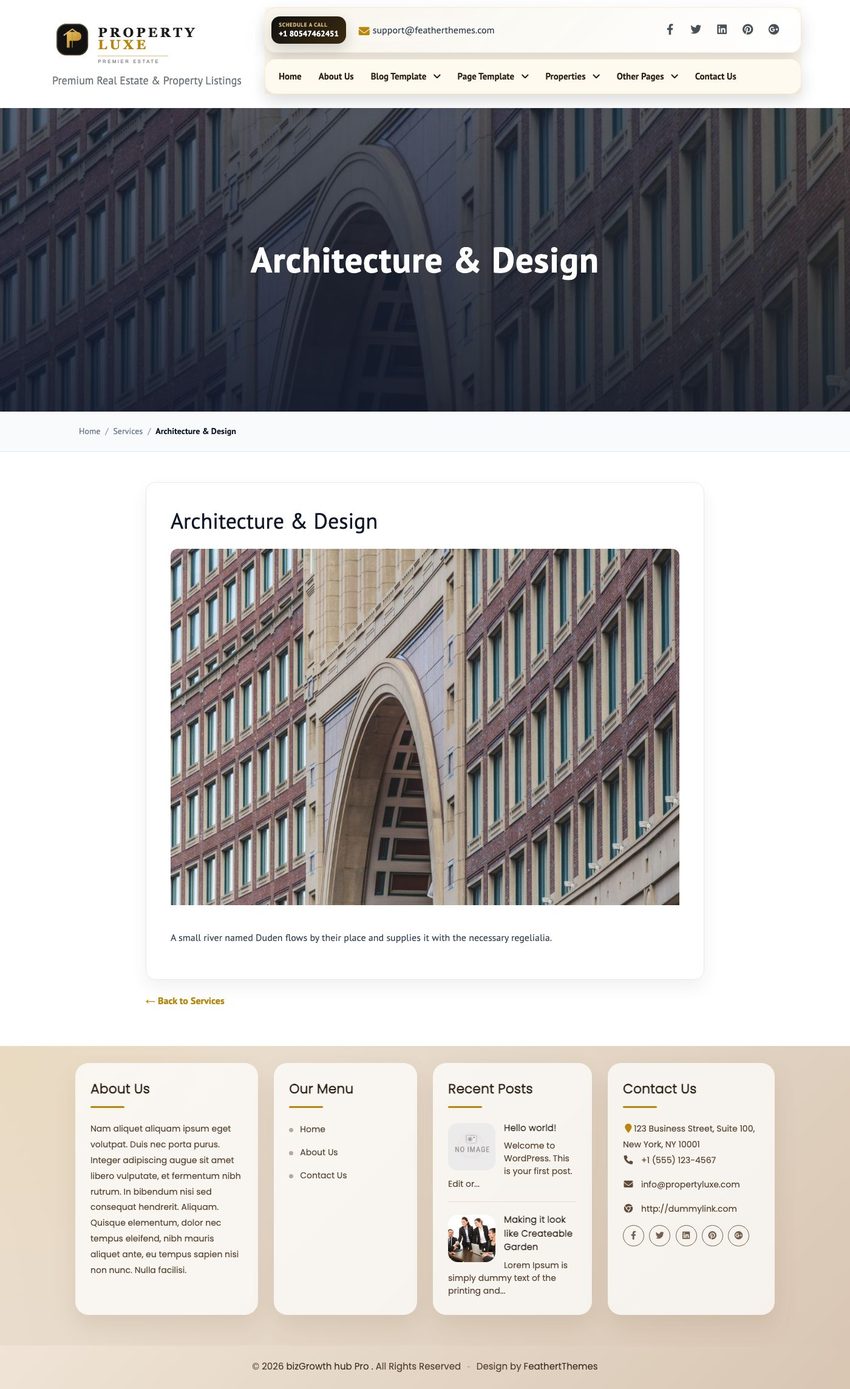
Service cards with icon, image, title, and link. Cards on the homepage link to each service’s detail page. The public archive is at /services/.
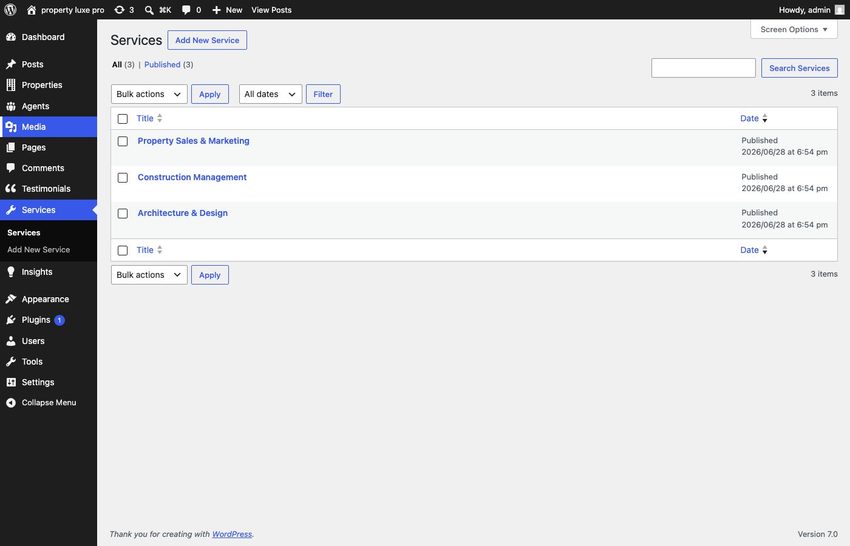
- Manage items: Services » Add New (
plp_servicepost type) - Archive: all services grid at /services/; click a card for the single service page
- Customizer: Home Sections Settings » Best Quality Services
- Shortcode:
[plp_best_quality_services]
Customizer:
Post type admin:
Archive page:
Single detail page:
5. Latest Listings
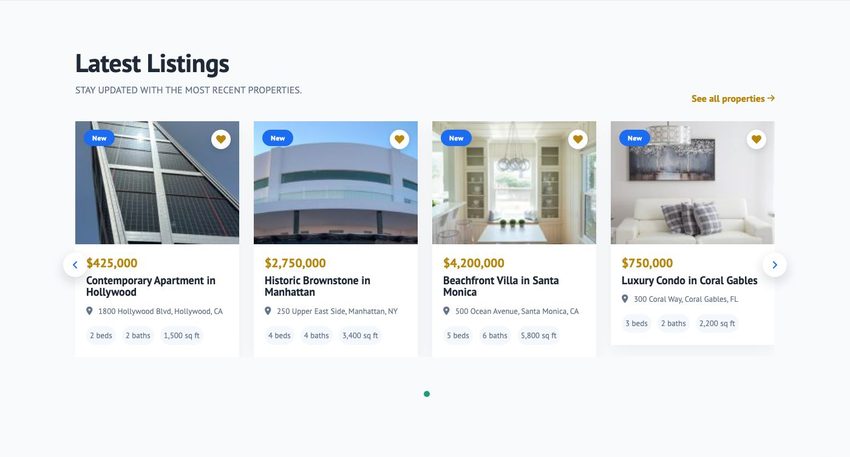
Carousel of the most recently published properties.
- Publish properties under Properties » Add New
- Customizer: Home Sections Settings » Latest Listings
- Shortcode:
[plp_latest_listings]
Customizer:
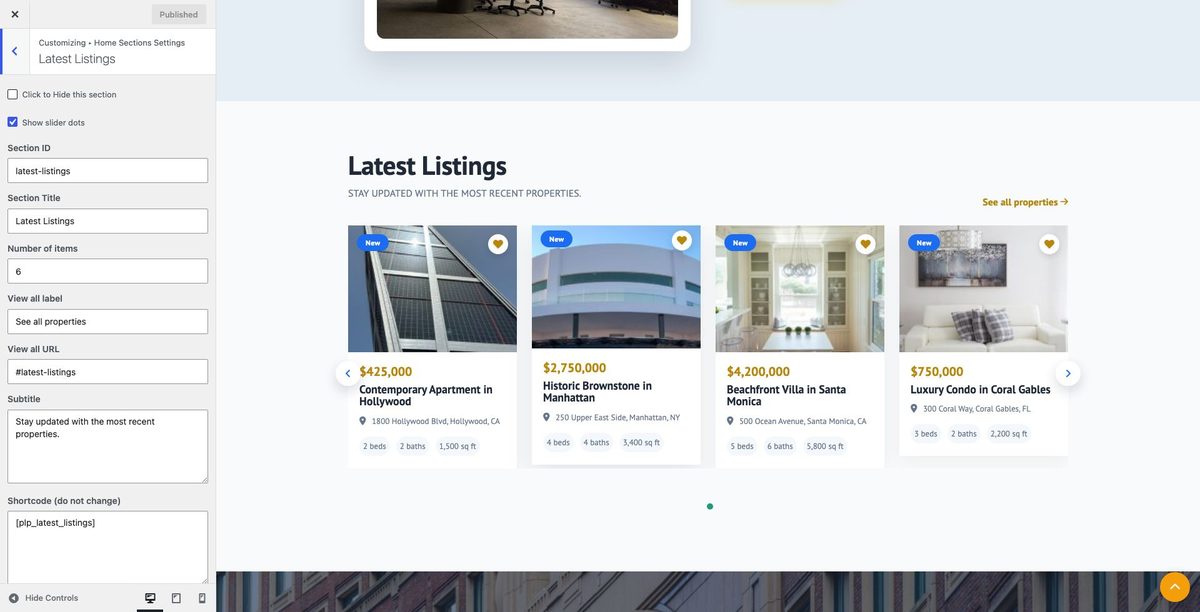
Managed under Properties » Add New (see Property Post Type chapter).
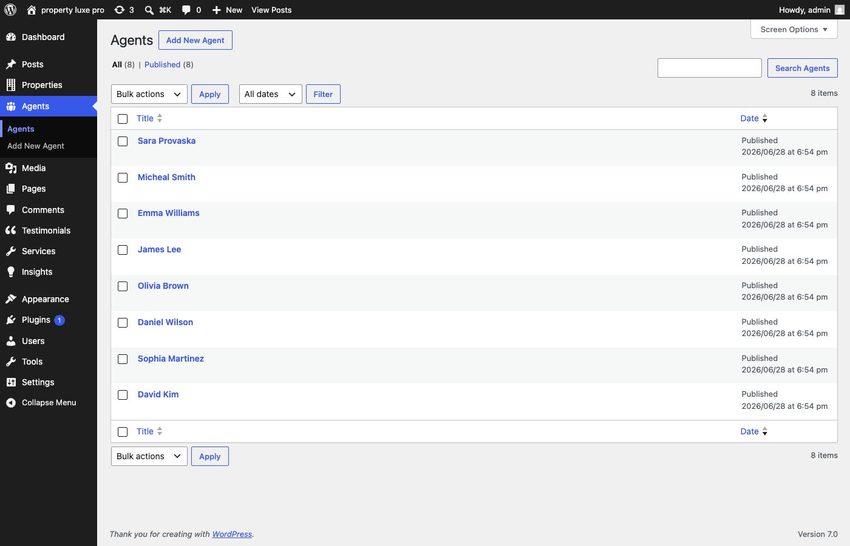
6. Expert Agents
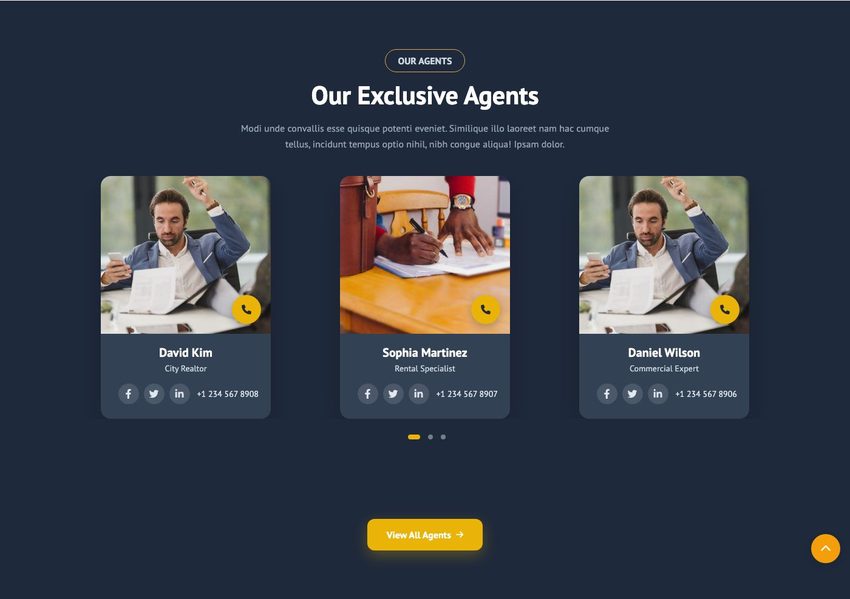
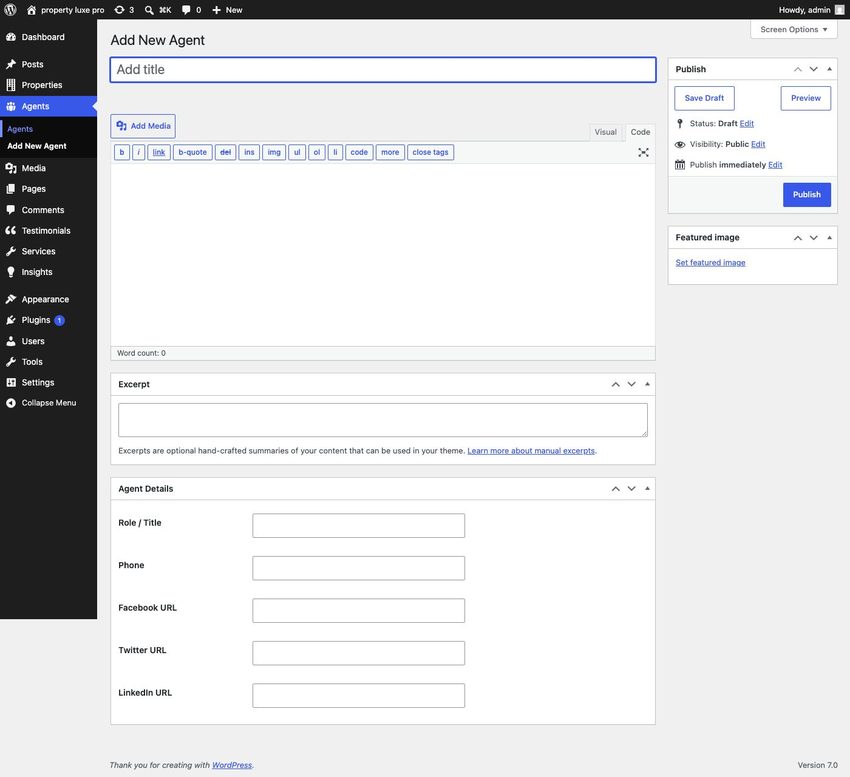
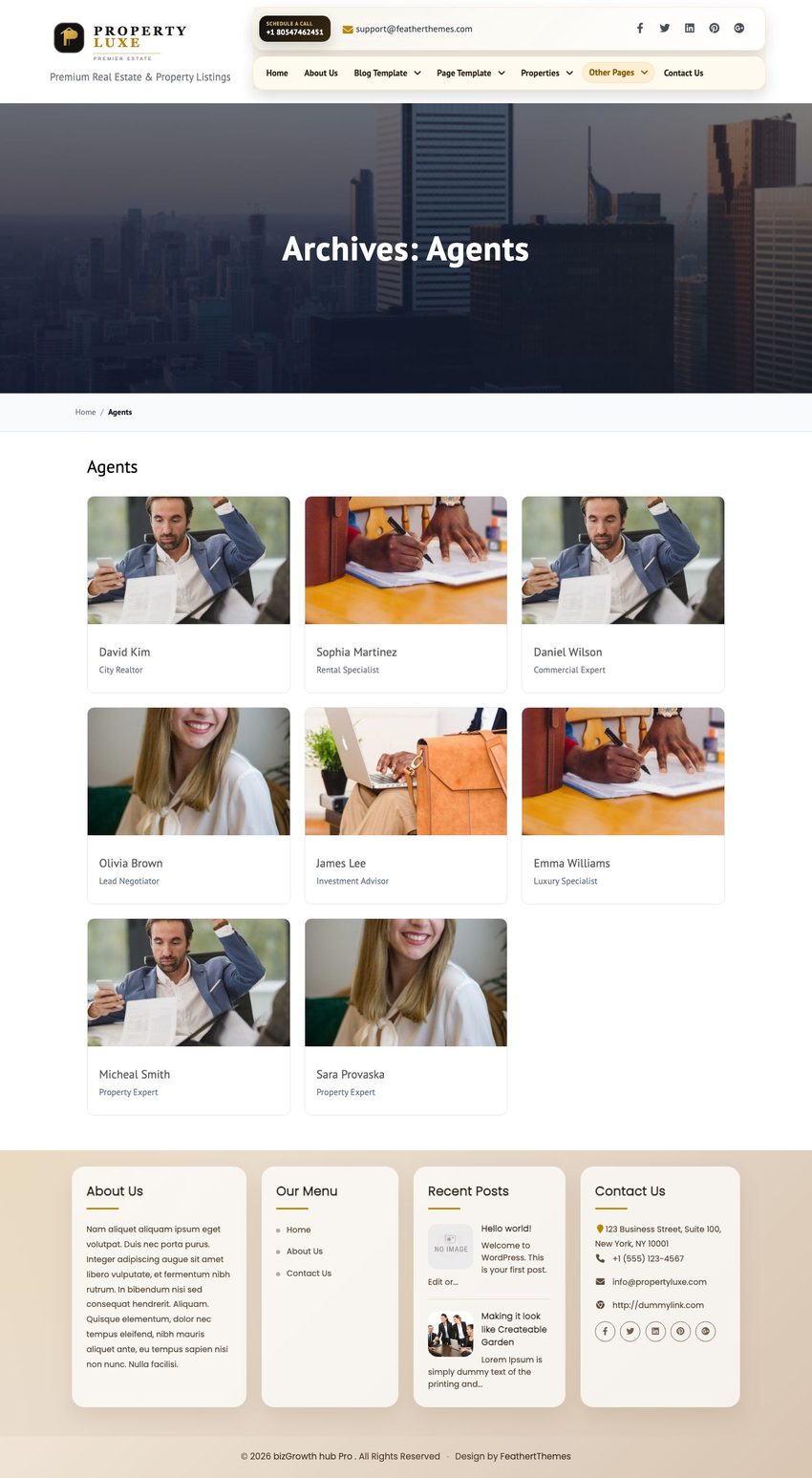
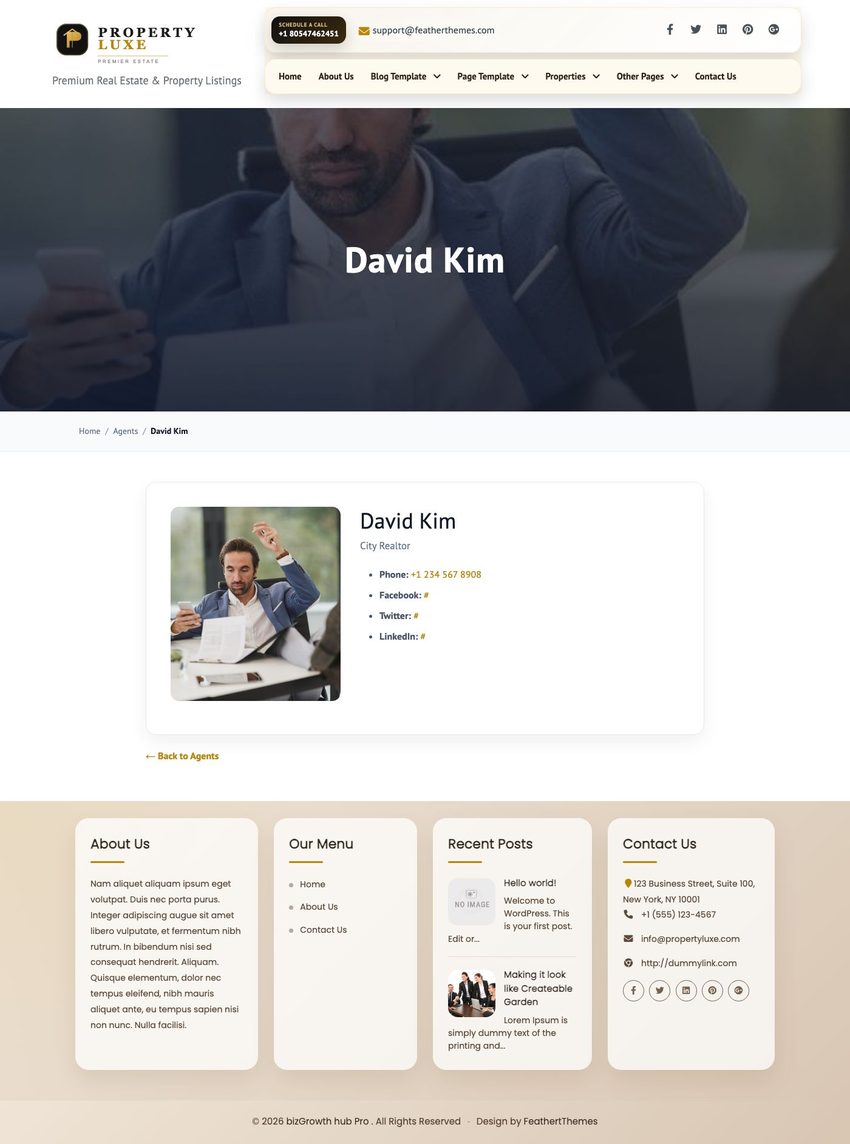
Agent profile carousel with photo, role, phone, and social links. Cards link to public agent detail pages; archive at /agents/.
- Manage agents: Agents » Add New (
property_luxe_agentpost type) - Agent fields: Role, Phone, Facebook, Twitter, LinkedIn + Featured Image + editor content for detail page
- Archive: /agents/; single page shows full bio and contact details
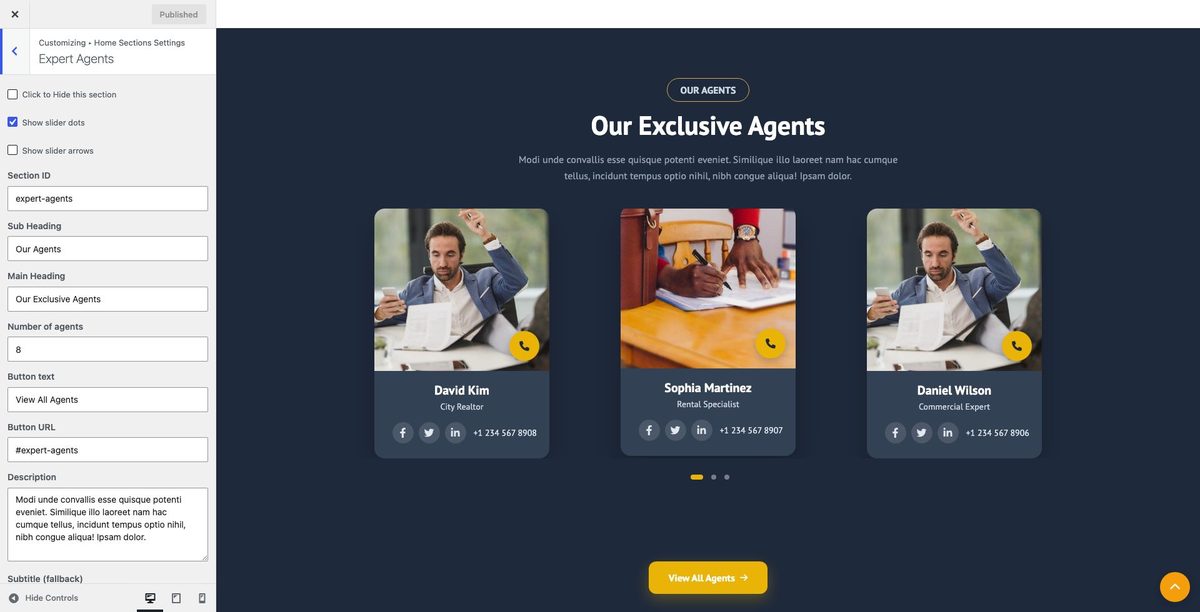
- Customizer: Home Sections Settings » Expert Agents
- Shortcode:
[plp_expert_agents]
Customizer:
Post type admin:
Add / edit agent:
Archive page:
Single detail page:
7. Testimonials
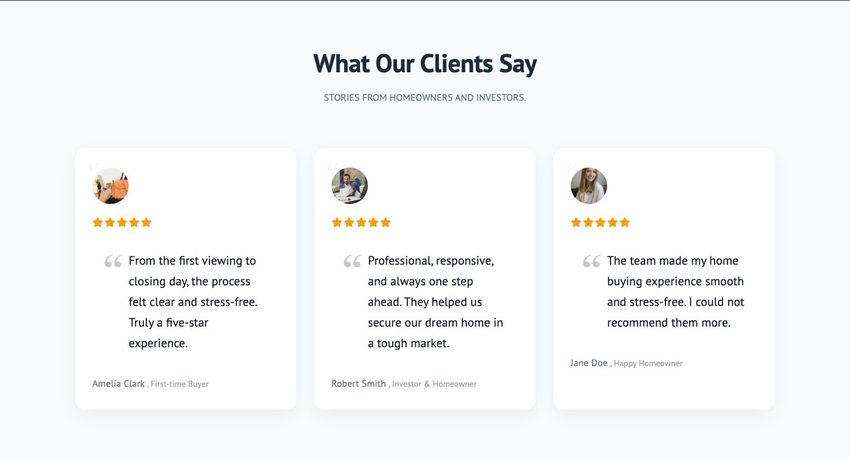
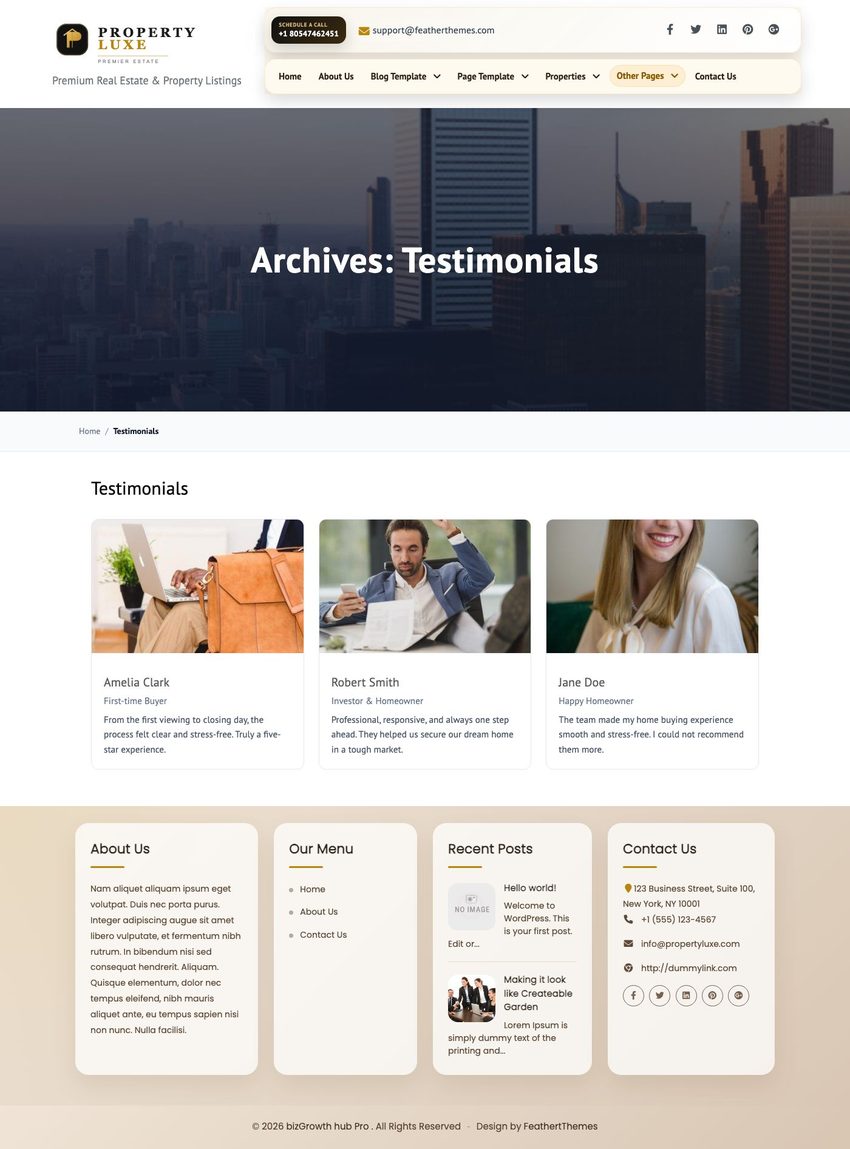
Client testimonial slider. Archive at /testimonials/ with individual detail pages.
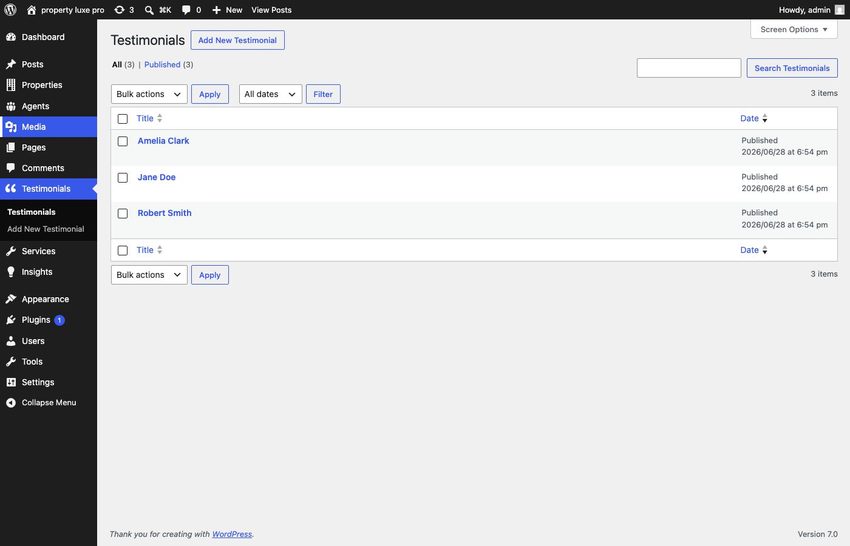
- Manage items: Testimonials » Add New (
plp_testimonialpost type) - Add client name as title, quote as content, optional featured image
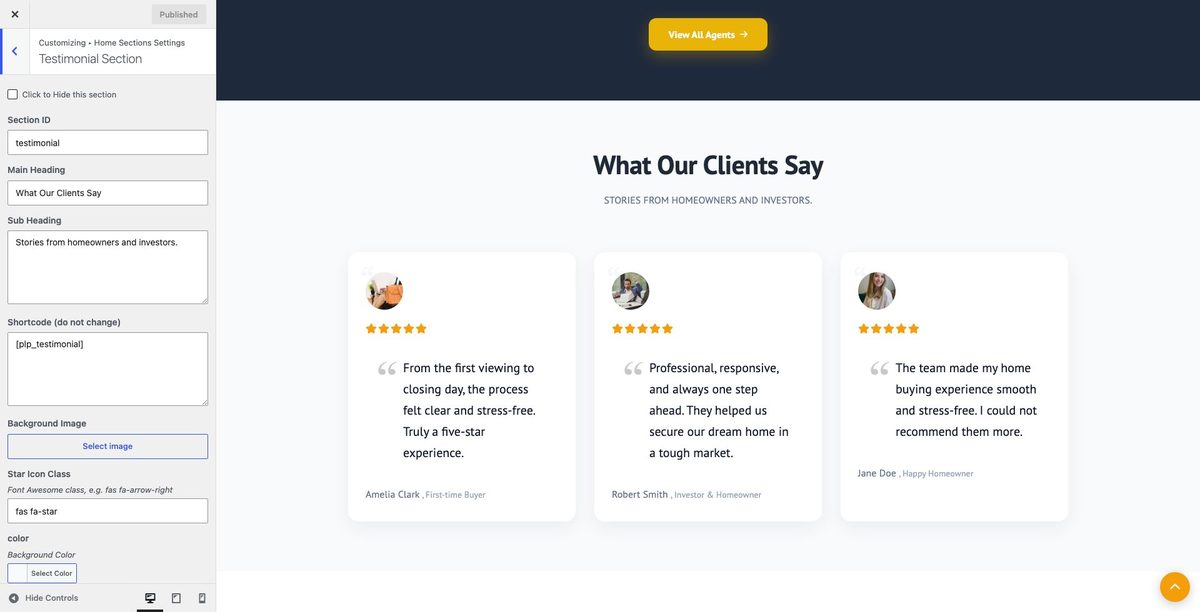
- Customizer: Home Sections Settings » Testimonial Section
- Shortcode:
[plp_testimonial]
Customizer:
Post type admin:
Archive page:
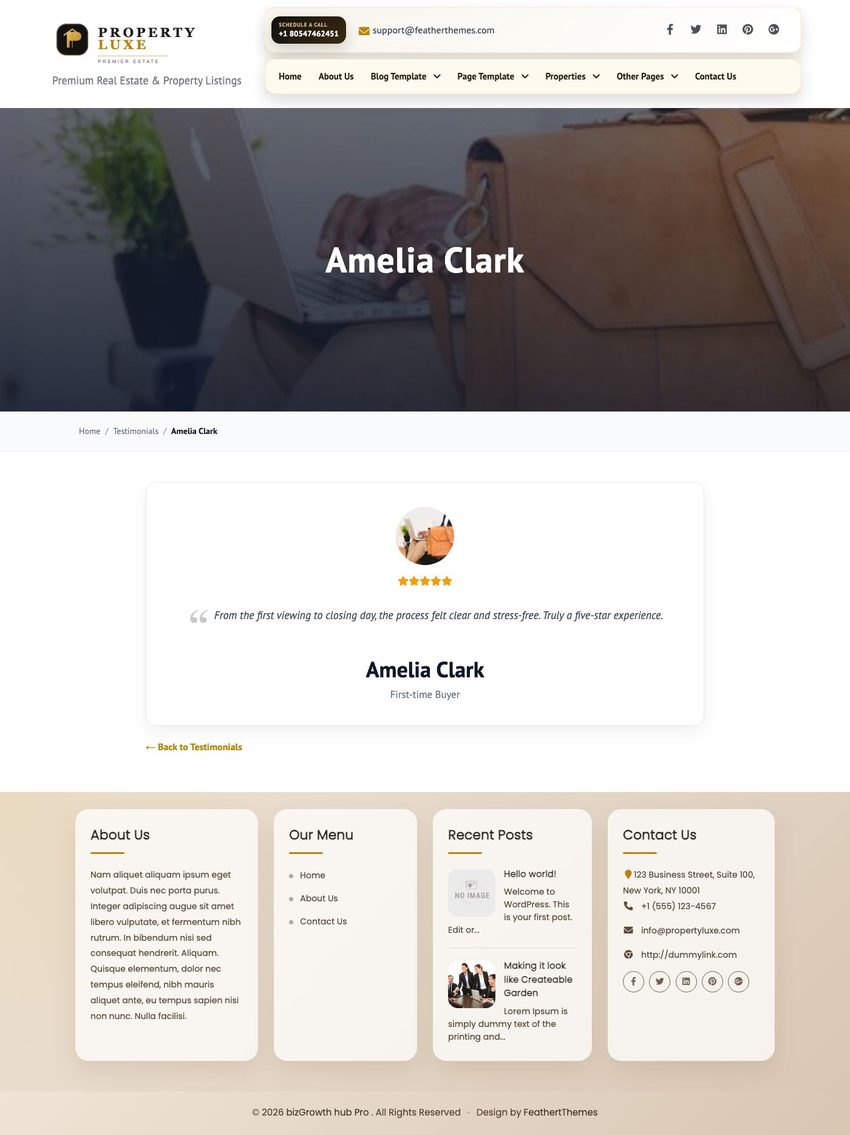
Single detail page:
8. Latest Blog
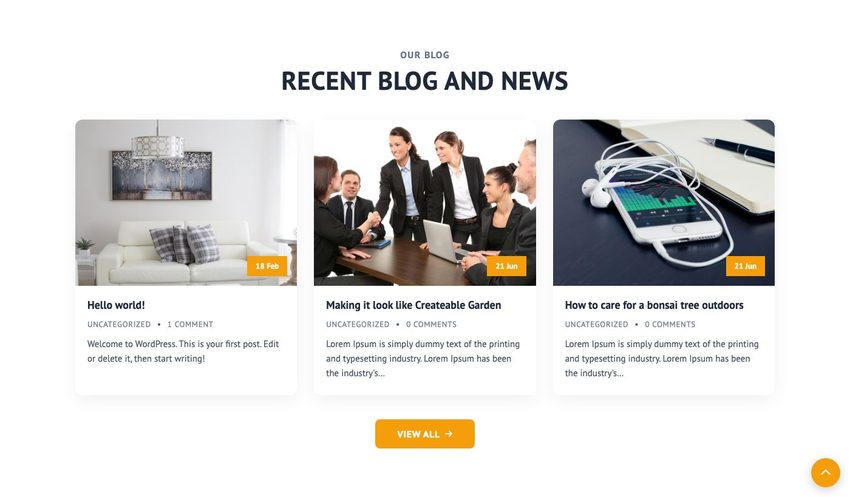
Recent blog posts grid from standard WordPress posts.
- Publish posts under Posts » Add New
- Customizer: Home Sections Settings » Latest Blog
- Shortcode:
[plp_latest_blog]
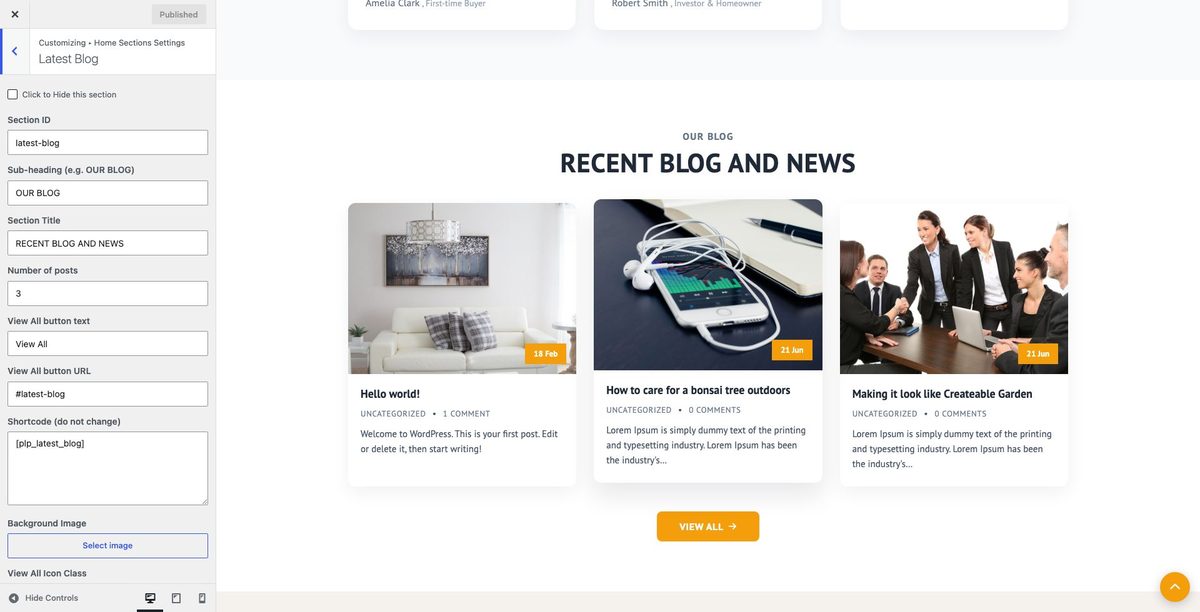
Customizer:
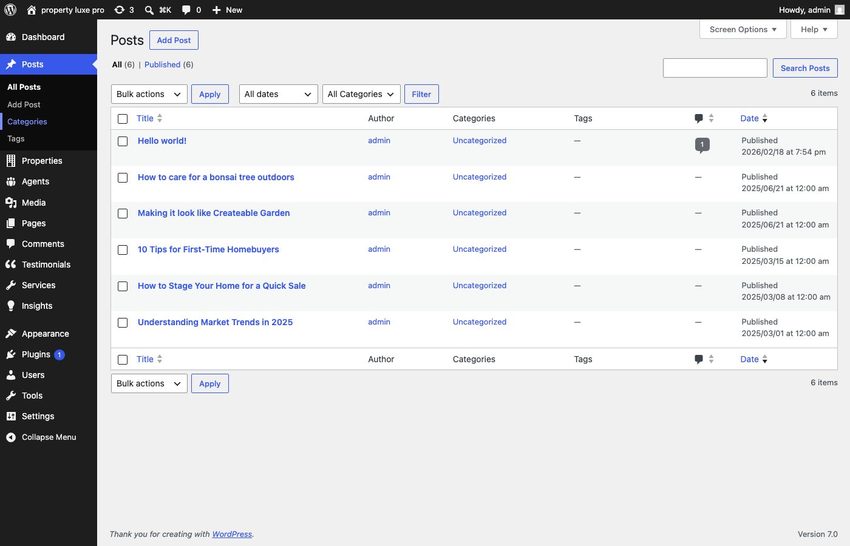
Post type admin:
9. Contact Section
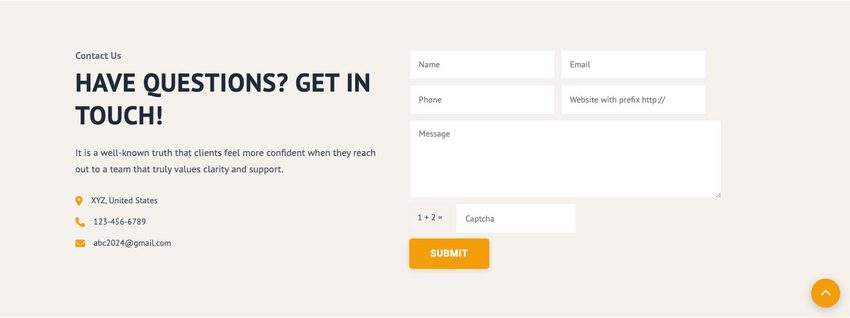
Contact details, map area, and optional contact form shortcode. Content is managed entirely in the Customizer (no post type).
- Customizer: Home Sections Settings » Contact Section
- Shortcode:
[plp_contact]
- Form shortcode (optional):
[contactform to_email="your@email.com" title="Contact Form"]
Customizer:
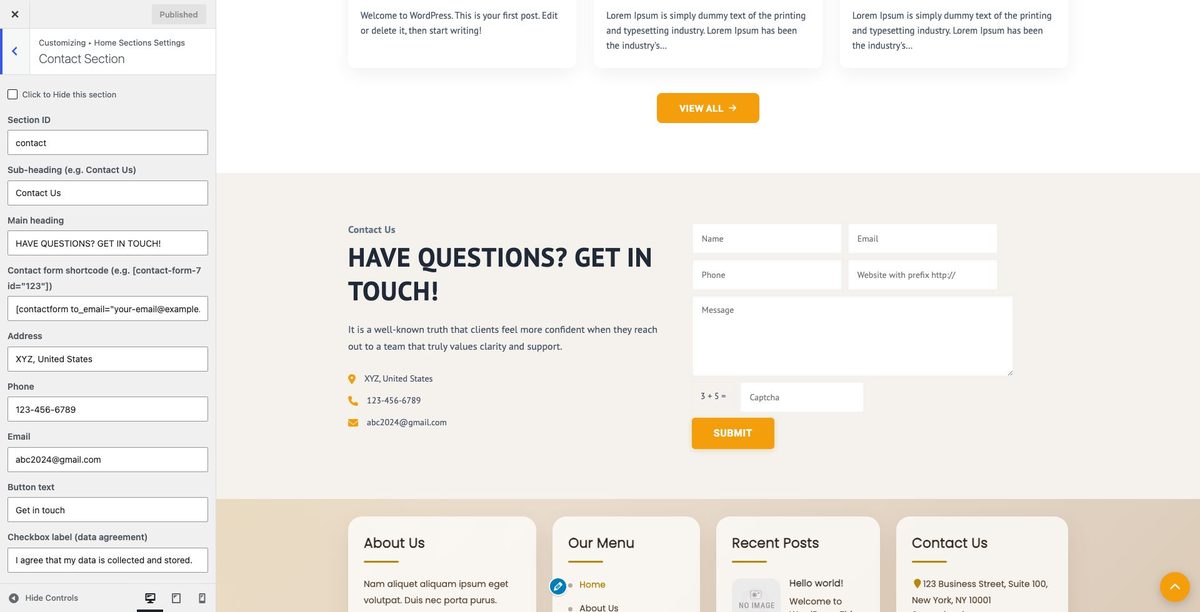
10. Prominent Projects
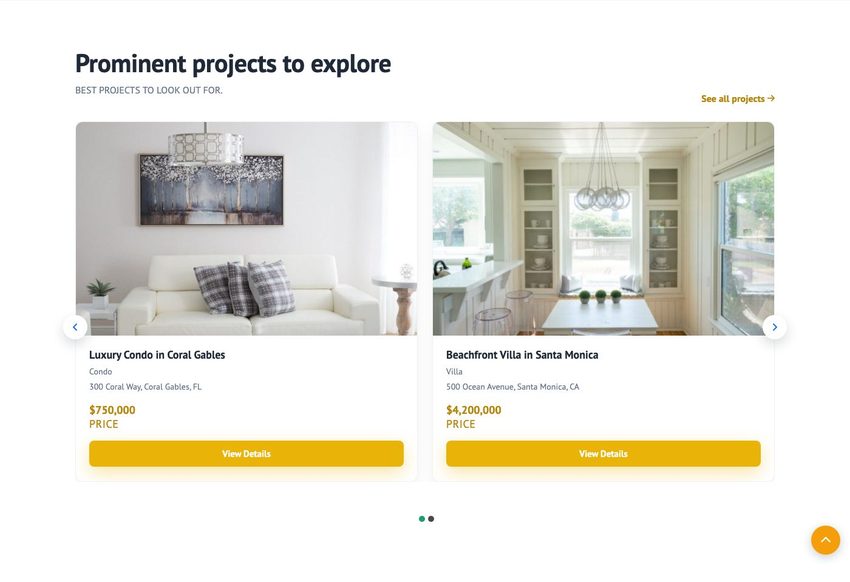
Carousel of properties flagged as Prominent Project.
- Check Prominent Project in property Core Listing Info
- Customizer: Home Sections Settings » Prominent Projects
- Shortcode:
[plp_prominent_projects]
Customizer:
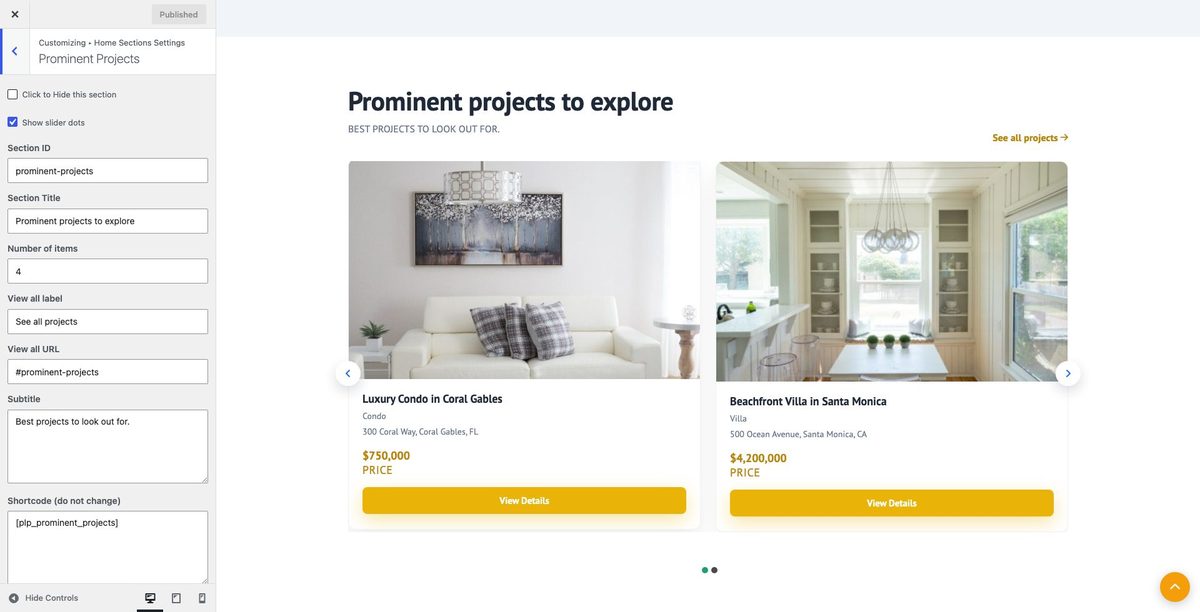
Uses the same Prominent Project checkbox in property Core Listing Info (see Featured Properties above).
11. Newly Added Properties
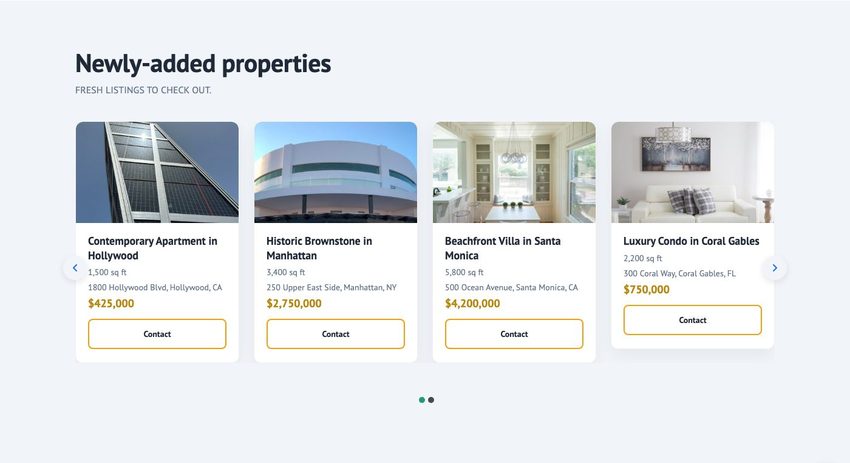
Carousel highlighting newest property listings (most recently published).
- Publish new properties under Properties » Add New
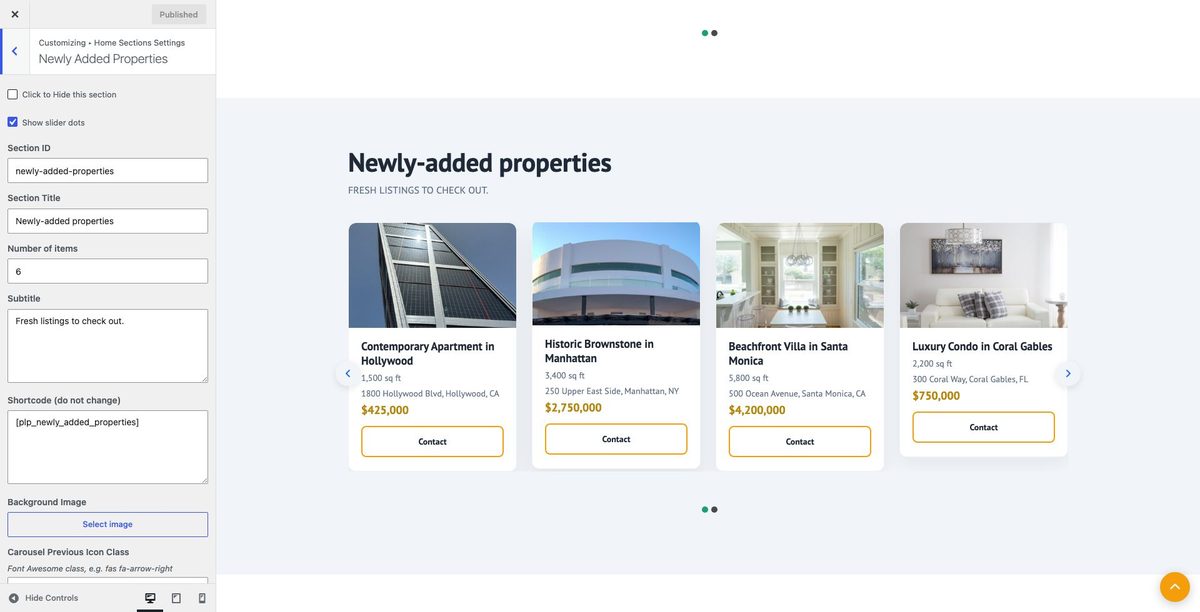
- Customizer: Home Sections Settings » Newly Added Properties
- Shortcode:
[plp_newly_added_properties]
Customizer:
12. Top Highlighted Projects
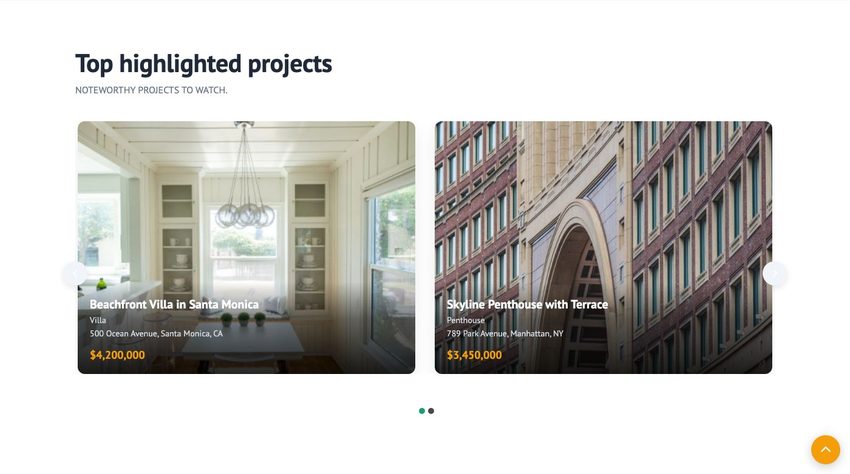
Carousel of properties marked Top Highlighted.
- Check Top Highlighted in property Core Listing Info
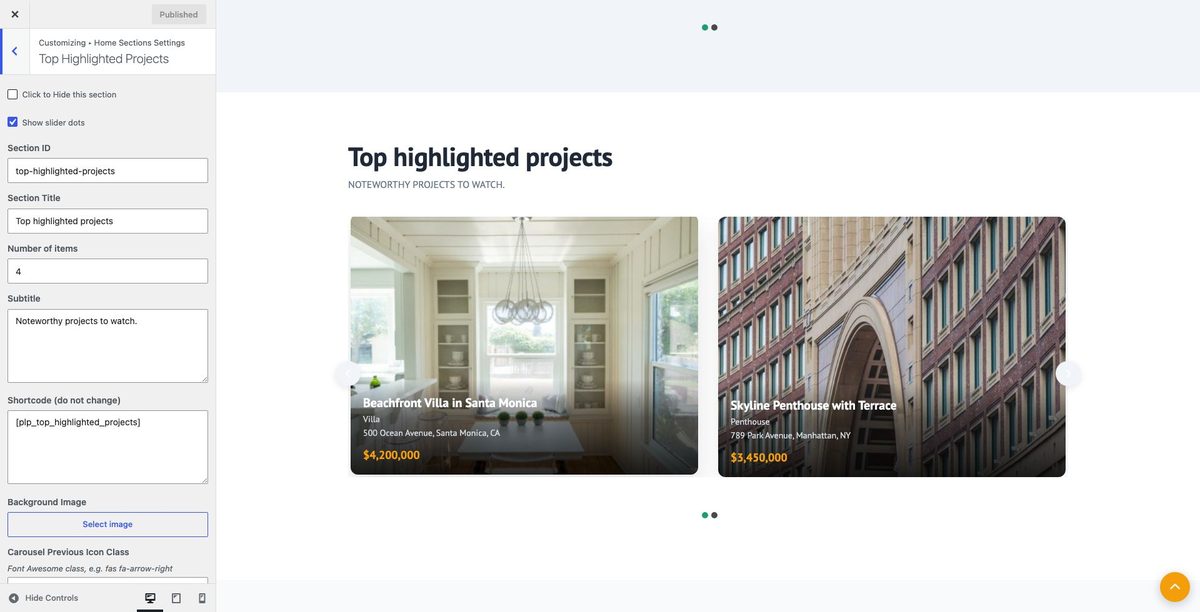
- Customizer: Home Sections Settings » Top Highlighted Projects
- Shortcode:
[plp_top_highlighted_projects]
Customizer:
Uses the same Top Highlighted checkbox in property Core Listing Info (see Featured Properties above).
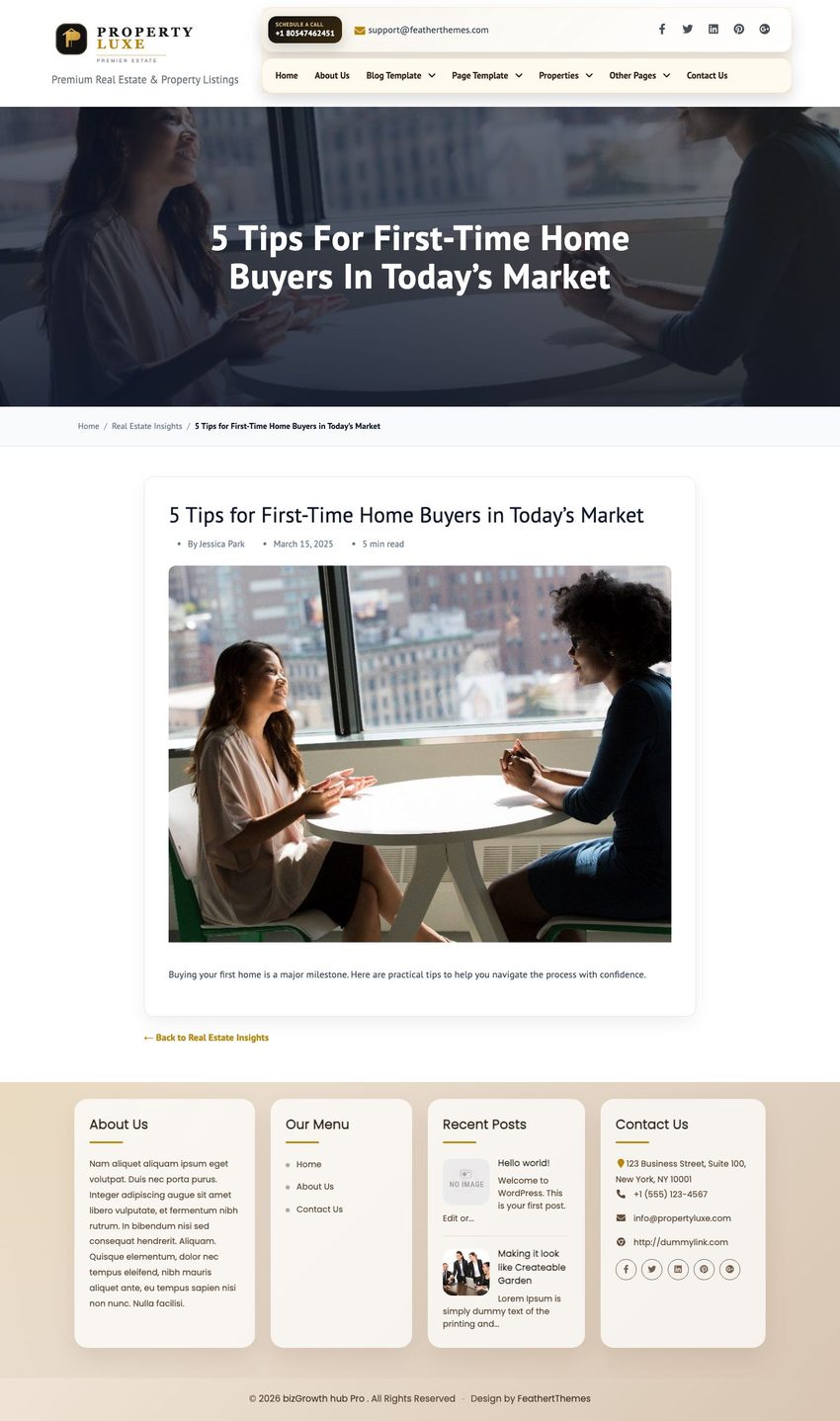
13. Real Estate Insights
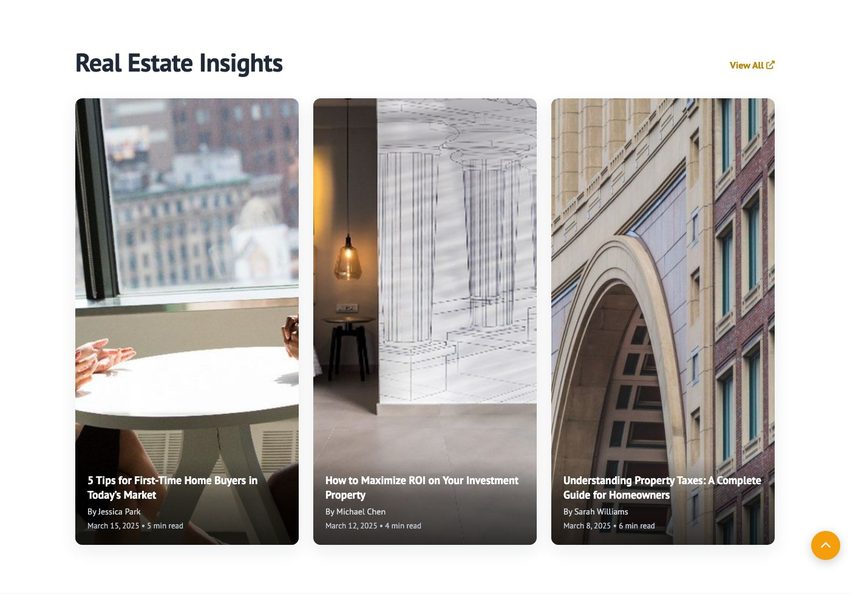
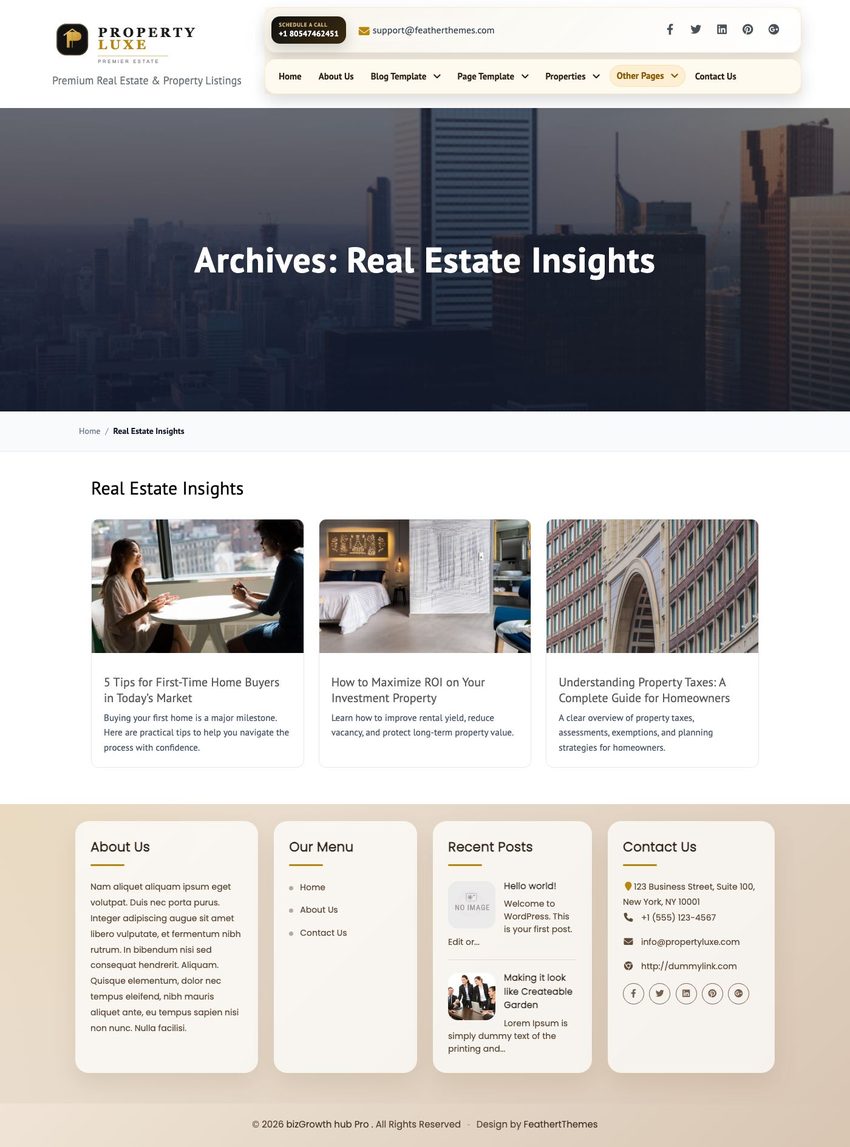
Insight article cards powered by the dedicated plp_insight post type (not standard blog posts). Archive at /real-estate-insights/; cards link to full article detail pages.
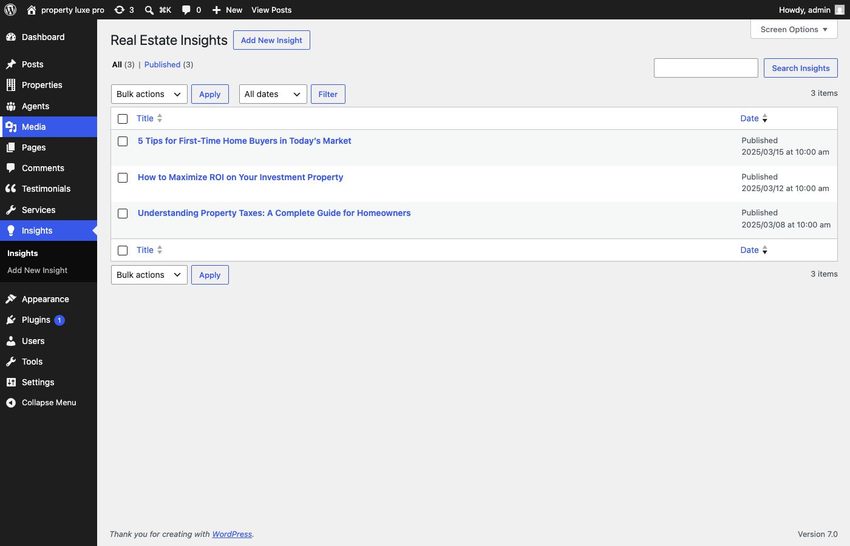
- Manage items: Real Estate Insights » Add New (
plp_insight) - Add title, excerpt, featured image, and full article content in the editor
- Optional external URL field appears as a button on the detail page only
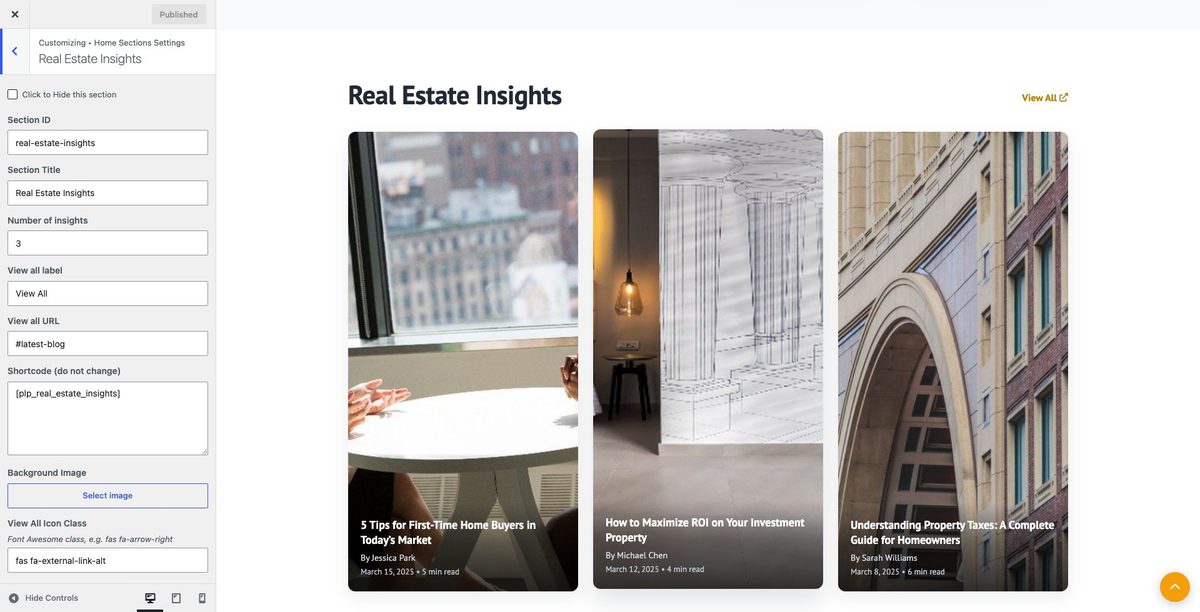
- Customizer: Home Sections Settings » Real Estate Insights
- Shortcode:
[plp_real_estate_insights]
Customizer:
Post type admin:
Archive page:
Single detail page:
14. Market Performance Analysis
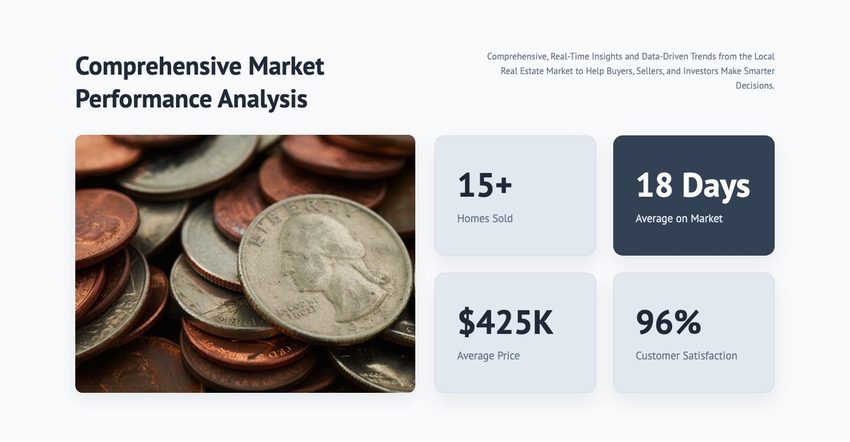
Market statistics and performance metrics. All content is set in the Customizer (no post type).
- Customizer: Home Sections Settings » Market Performance Analysis
- Shortcode:
[plp_market_performance]
Customizer:
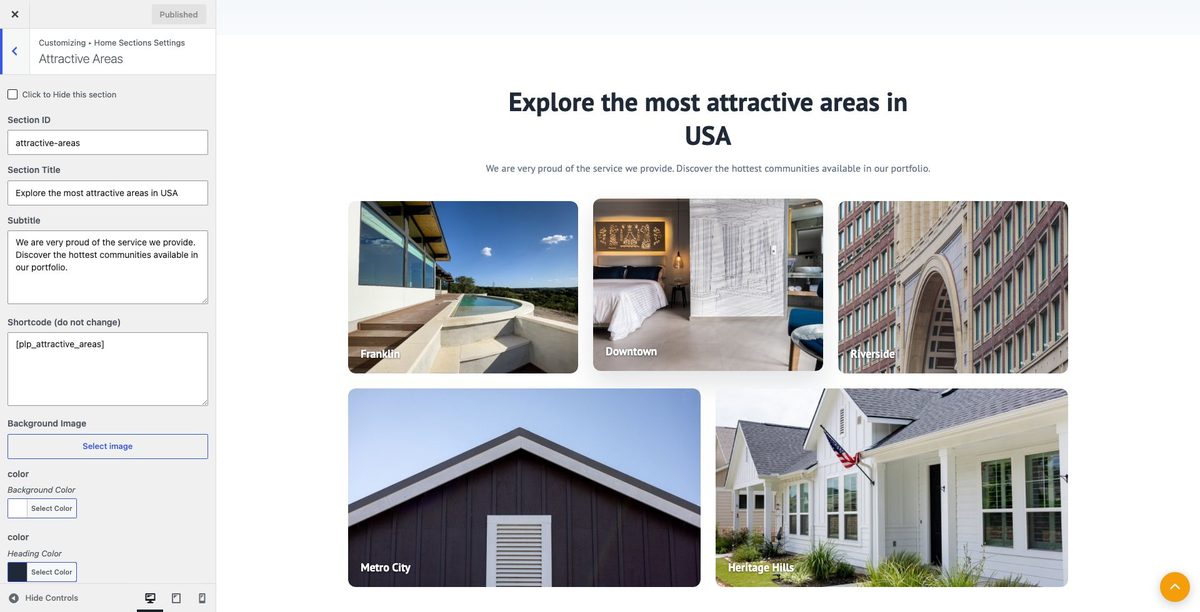
15. Attractive Areas
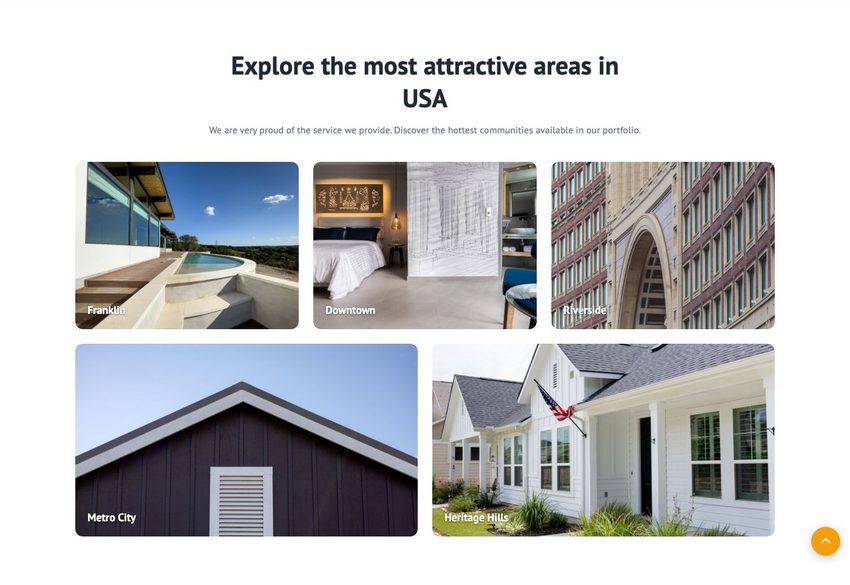
Area highlight cards with images and links. Content is configured in the Customizer.
- Customizer: Home Sections Settings » Attractive Areas
- Shortcode:
[plp_attractive_areas]
Customizer:
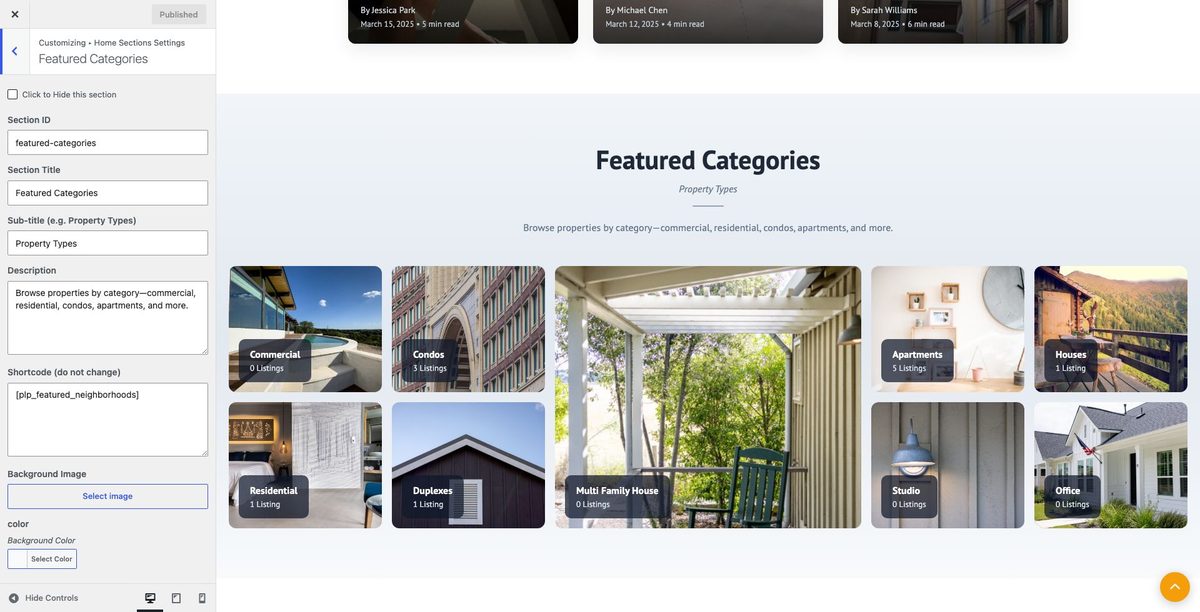
16. Featured Neighborhoods / Categories
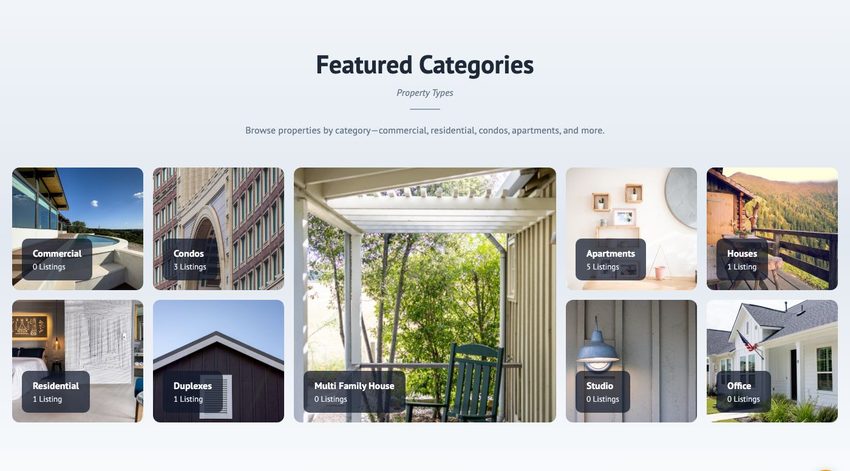
Property category cards (Residential, Commercial, etc.).
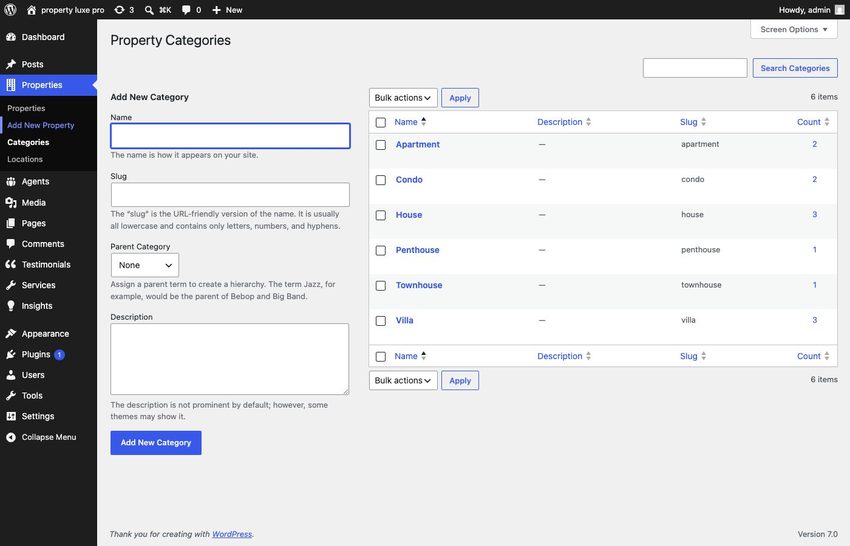
- Manage categories: Properties » Property Categories (
property_categorytaxonomy) - Customizer: Home Sections Settings » Featured Categories
- Shortcode:
[plp_featured_neighborhoods]
Customizer:
Post type / taxonomy admin:
17. Who We Are
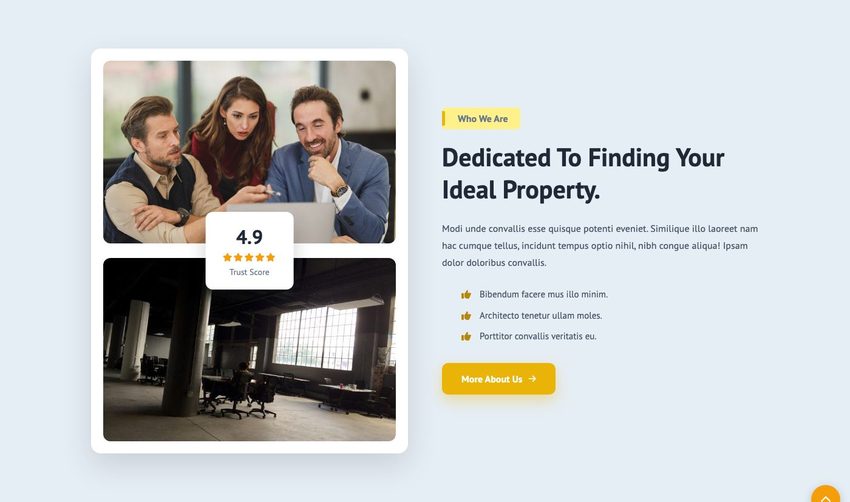
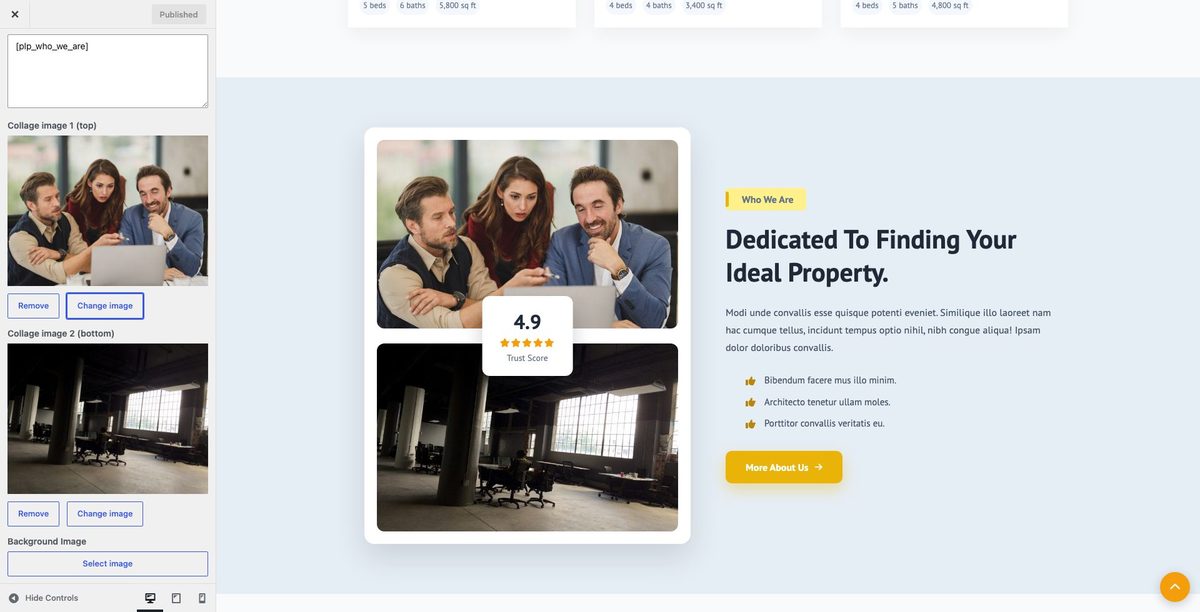
About section with feature list and optional image. Content is managed in the Customizer.
- Customizer: Home Sections Settings » Who We Are
- Shortcode:
[plp_who_we_are]
Customizer:
7. Property Post Type
Properties are managed under Properties in the WordPress admin (property_luxe post type).
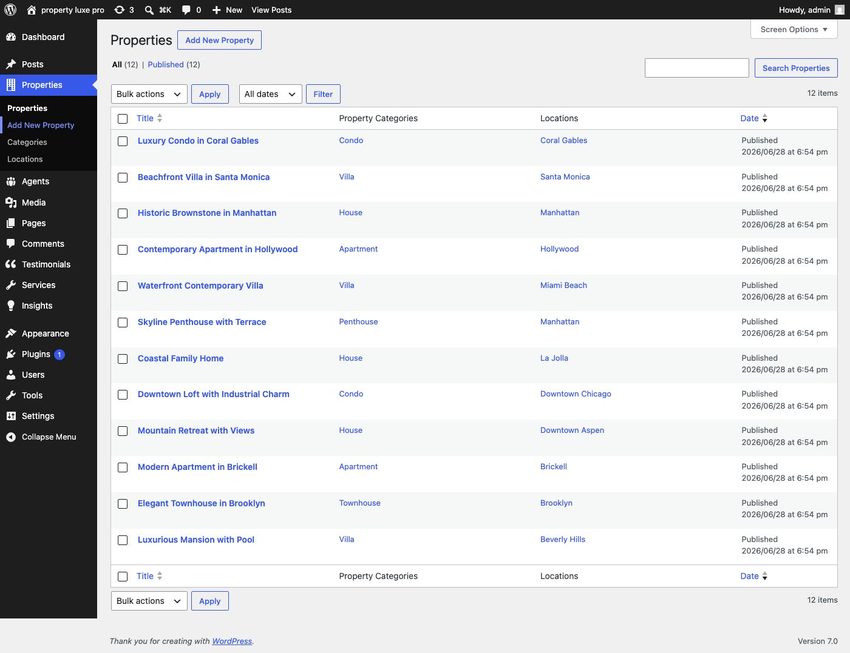
Adding a Property
- Go to Properties » Add New.
- Enter the property title and full description in the editor (shown on the single property page).
- Set a Featured Image for listing cards and banner.
- Assign Property Categories and Property Locations (city/area hierarchy).
- Fill in meta fields below the editor and in the sidebar boxes.
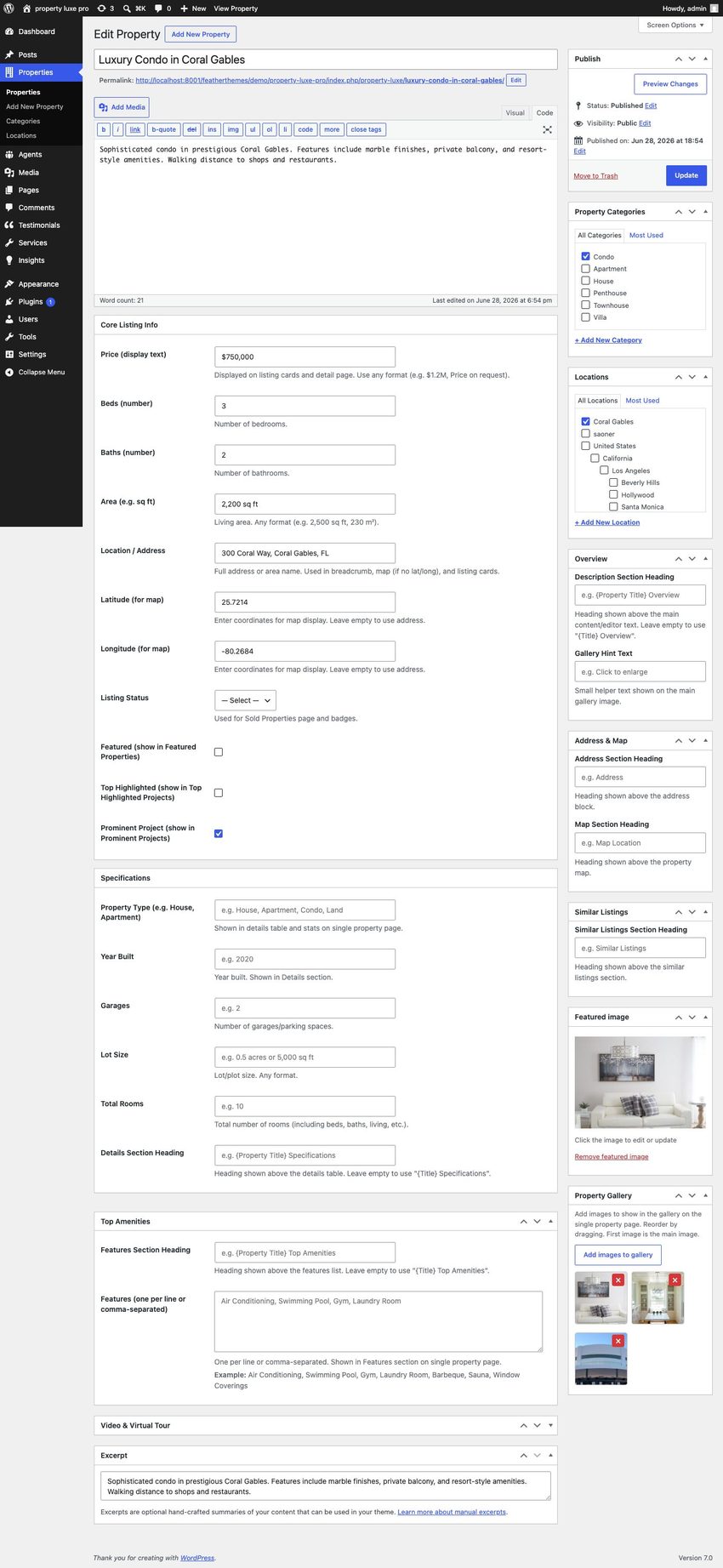
Core Listing Info
| Field | Description |
|---|---|
| Price | Display text (e.g. $1,250,000, Price on request) |
| Beds / Baths | Bedroom and bathroom counts |
| Area | Living area (e.g. 2,500 sq ft) |
| Location / Address | Full address; used on cards, breadcrumb, and map fallback |
| Latitude / Longitude | Map pin coordinates; leave empty to geocode from address |
| Listing Status | Active, Sold, Pending, or Open House |
| Featured | Show in Featured Properties section |
| Top Highlighted | Show in Top Highlighted Projects section |
| Prominent Project | Show in Prominent Projects section |
Specifications
| Field | Description |
|---|---|
| Property Type | House, Apartment, Villa, etc. |
| Year Built | Construction year |
| Garages | Number of garage spaces |
| Lot Size | Land size |
| Total Rooms | Total room count |
| Details Section Heading | Custom heading for the details block on single page |
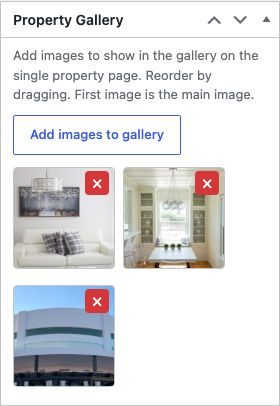
Property Gallery
Upload multiple gallery images in the Property Gallery meta box. These appear on the single property page and in the gallery lightbox.
Other Meta Boxes
- Top Amenities — feature list (comma or line-separated)
- Overview — description and gallery hint headings
- Address & Map — section heading overrides
- Video & Virtual Tour — YouTube/Vimeo embed URL and Matterport virtual tour link
- Similar Listings — heading for related properties block
8. Property Search & Archives
Property listing pages share a consistent filter bar, grid layout, and breadcrumb trail. The demo menu groups them under Properties.
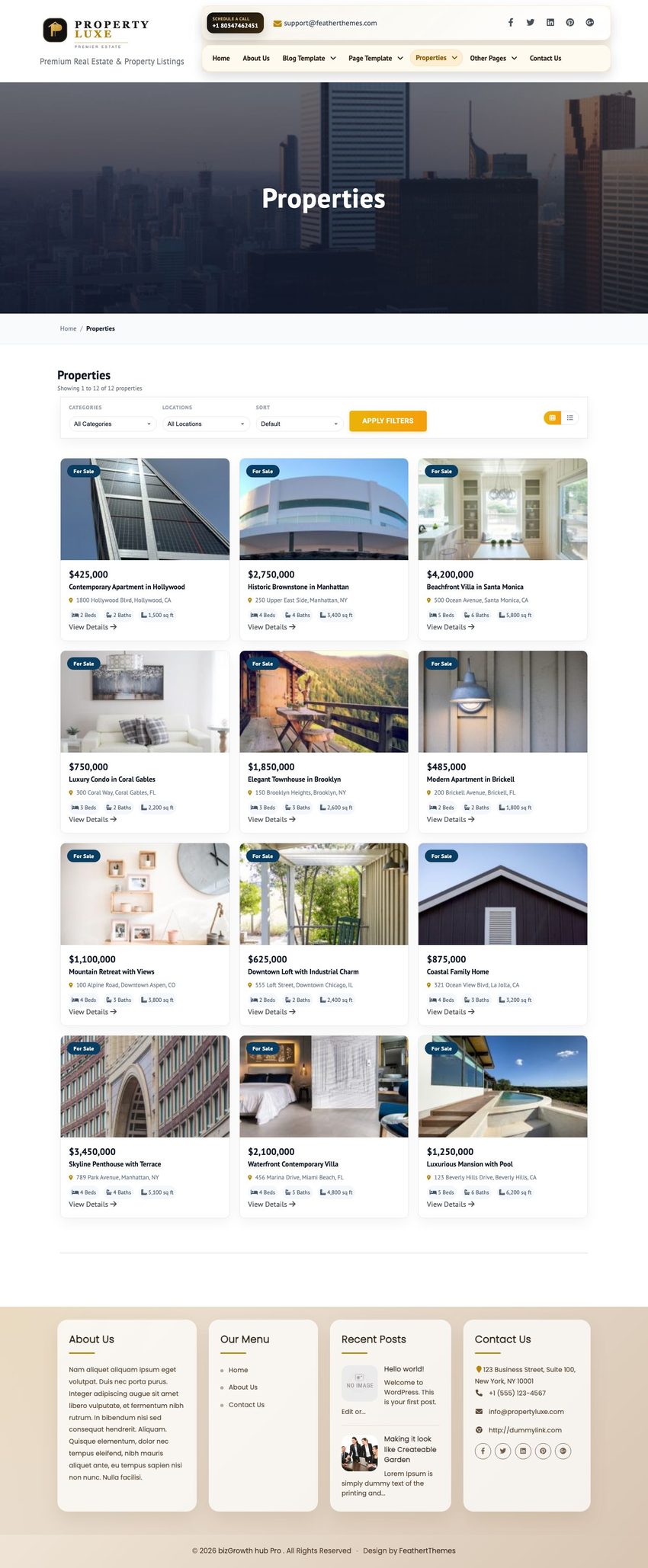
All Properties Archive
Main property post type archive at /property-luxe/ — all published listings.
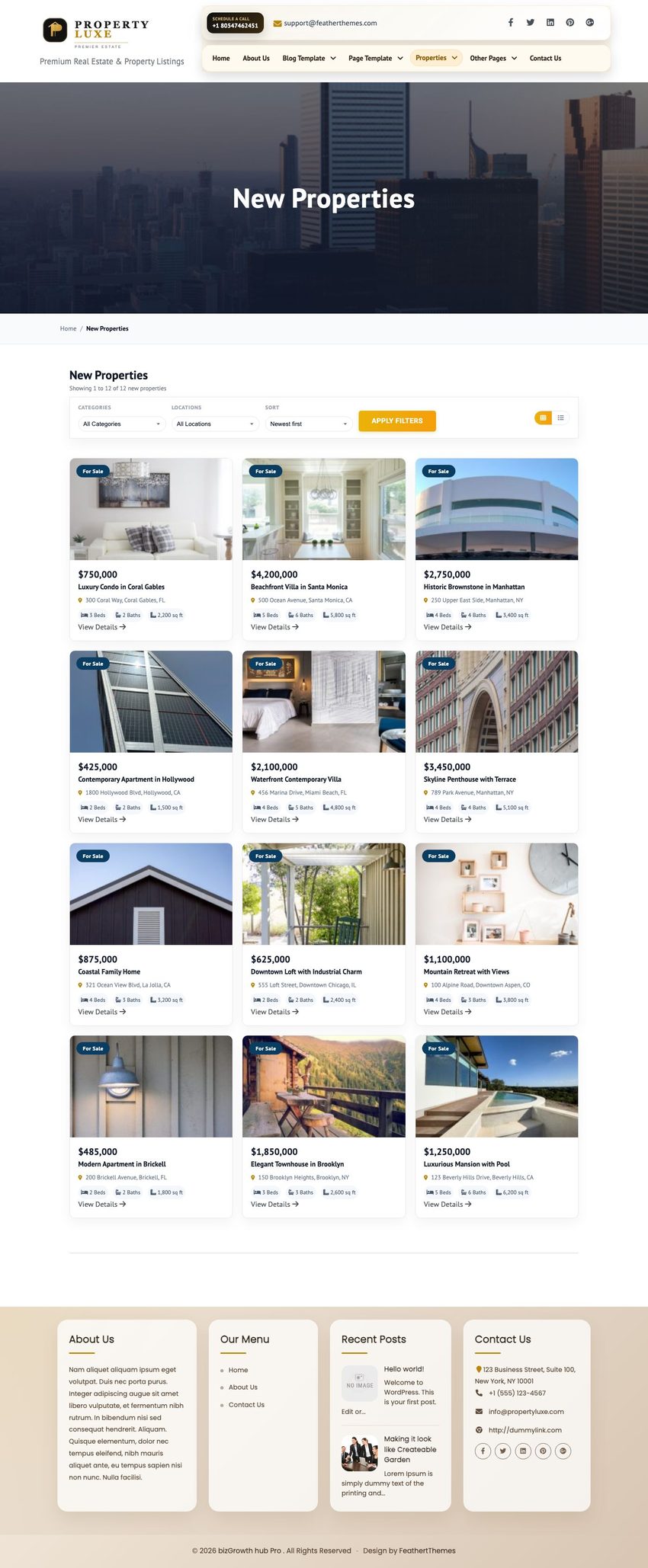
New Properties Page
Template page showing newest listings first, excluding sold properties. Demo URL: /new-properties/.
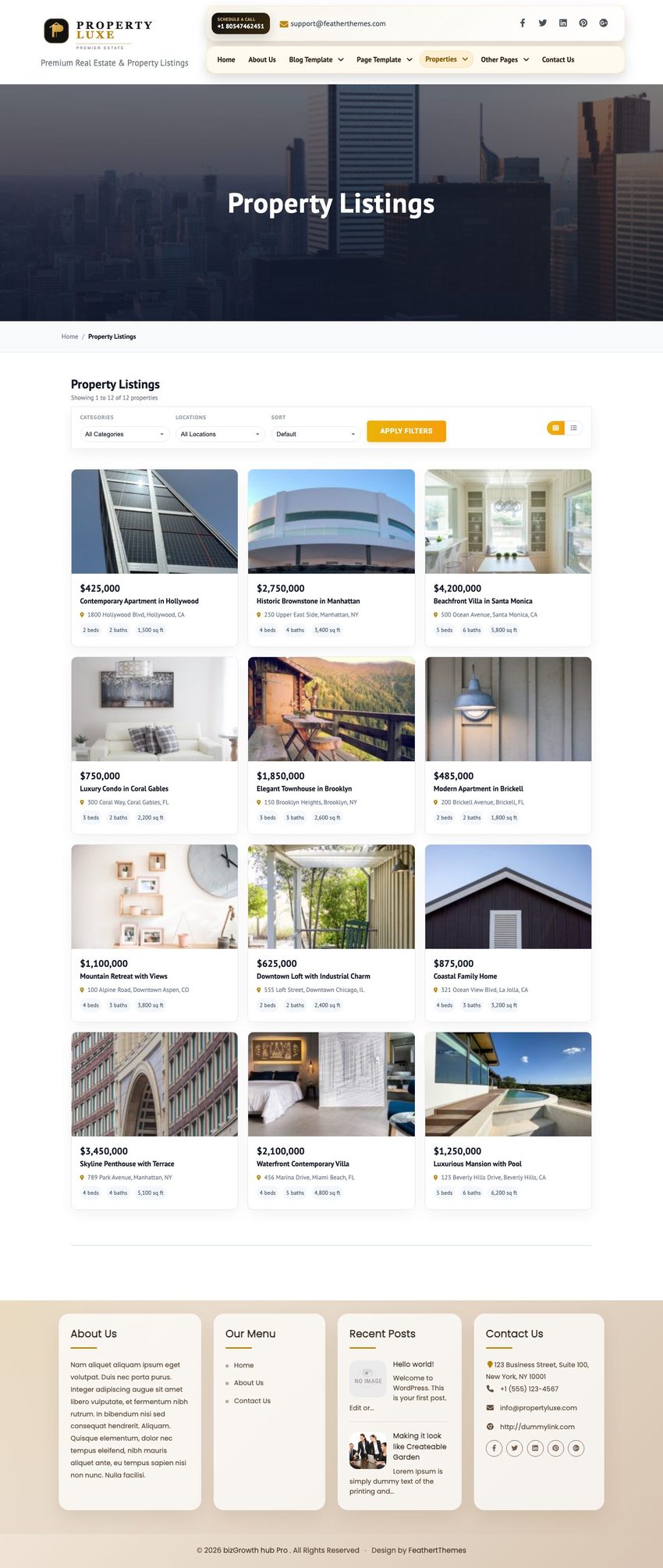
Property Listings Page
Full listings grid with sidebar filters. Demo URL: /property-listings/.
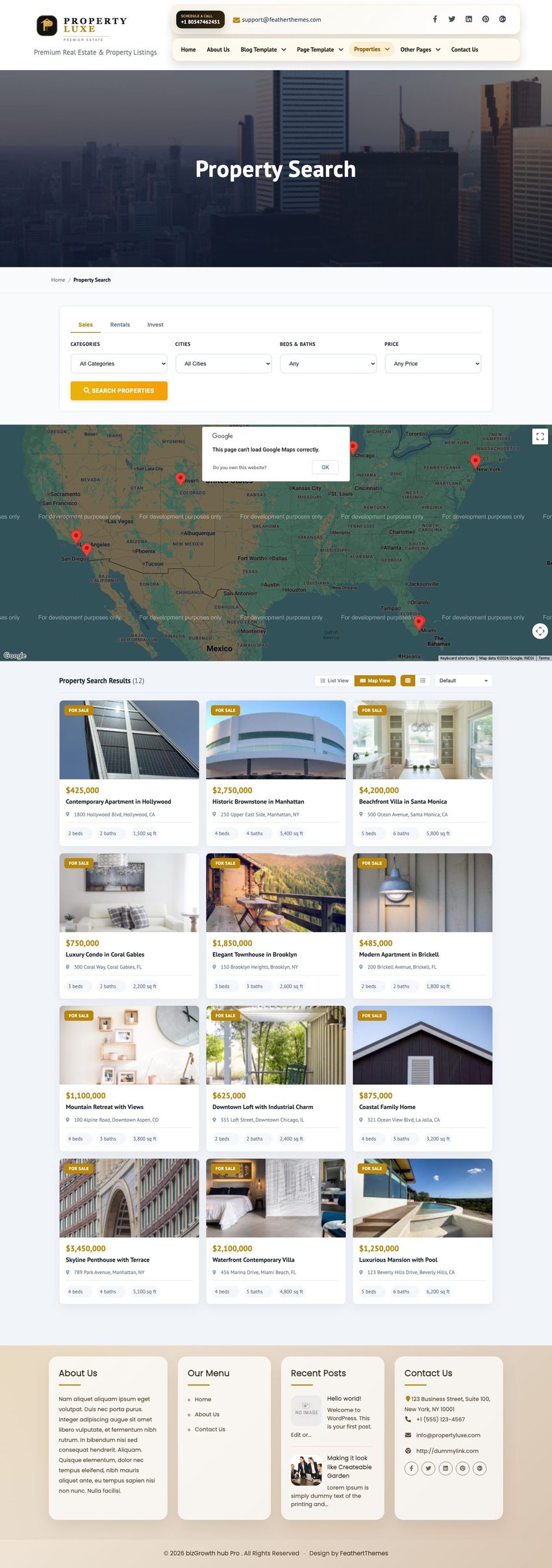
Property Search Page
Advanced search with filters for keyword, category, location, beds, baths, and price.
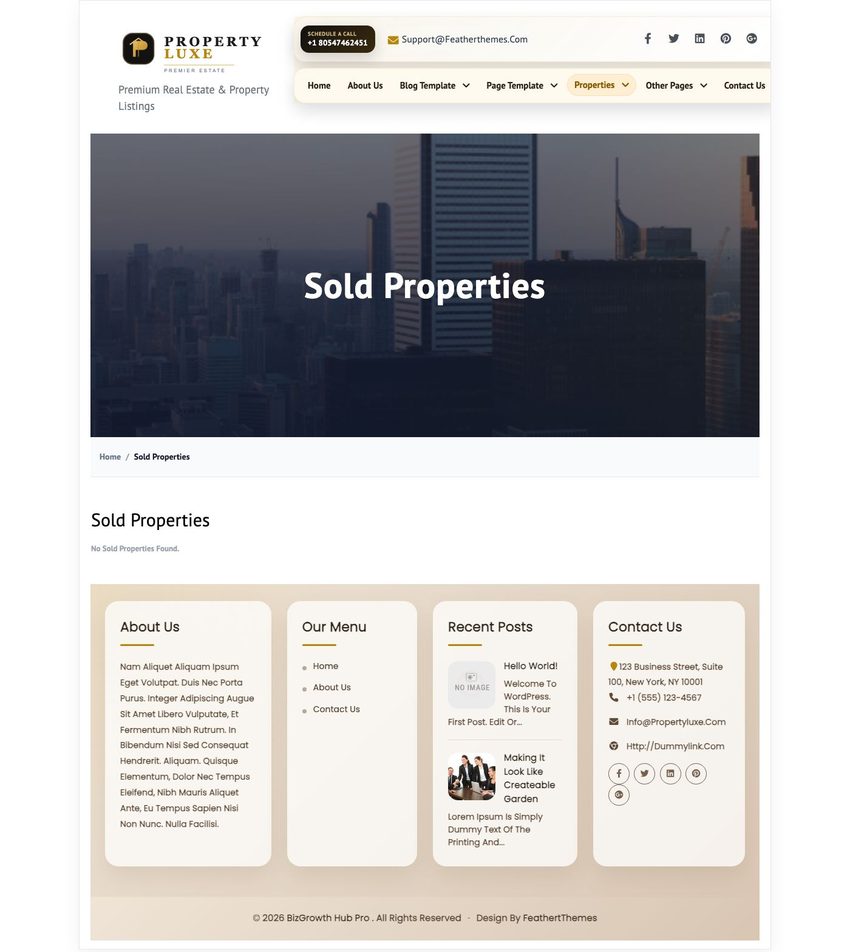
Sold Properties Page
Listings filtered to sold status only. Demo URL: /sold-properties/.
Breadcrumbs
Inner property and section pages display breadcrumb navigation (Home » parent » current page).

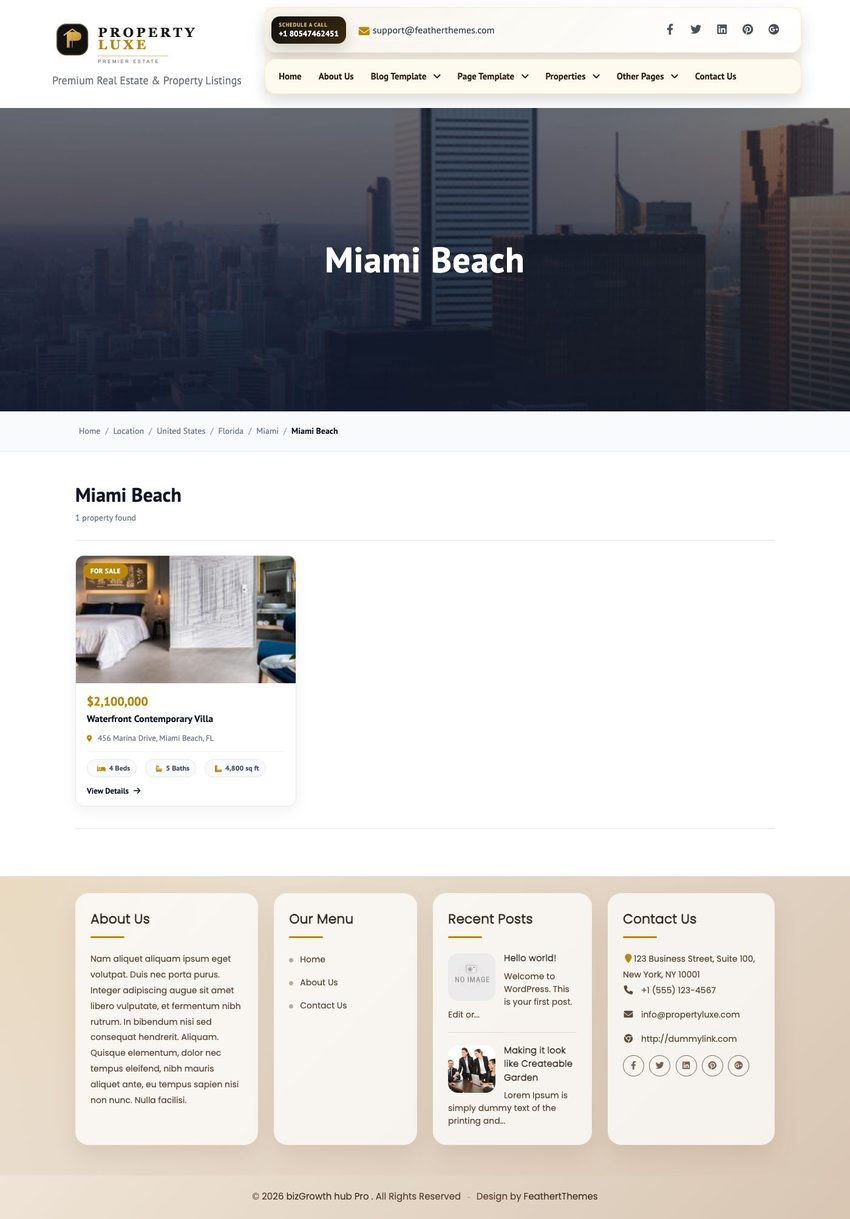
Taxonomy Archives
Category and location archives display properties in a two-column grid with sidebar.
- Property Categories — e.g. Residential, Luxury, Commercial
- Property Locations — hierarchical (Country » State » City » Neighborhood)
9. Single Property Page
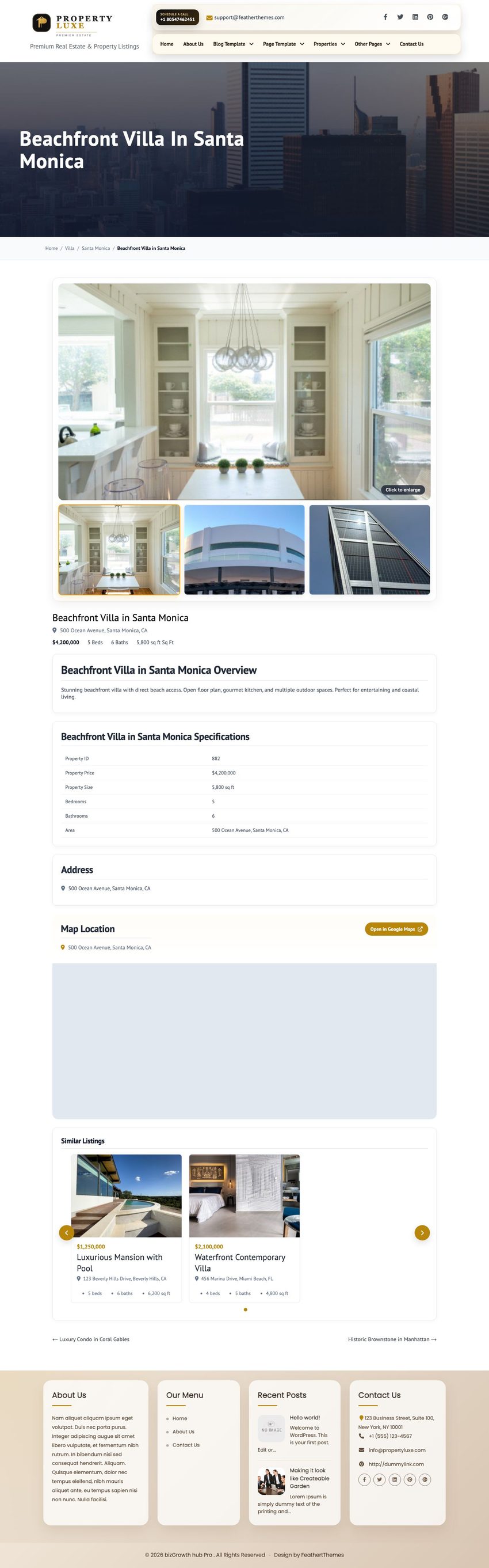
The single property template includes price, specs, amenities, gallery, map, video, virtual tour, and similar listings.
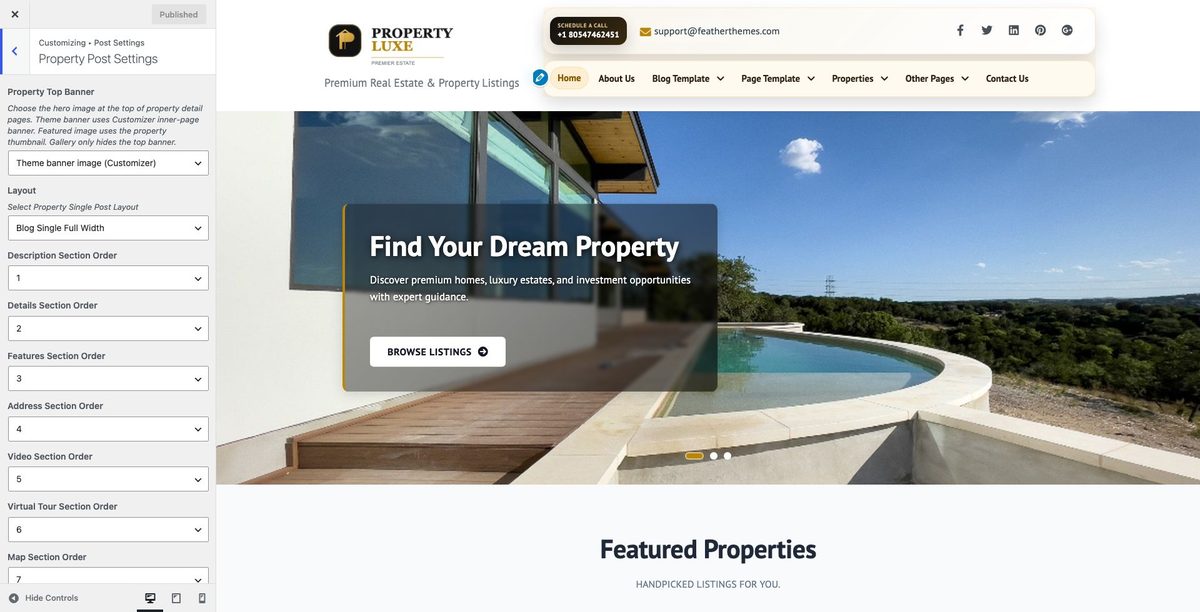
Customize layout and banner behavior at Appearance » Customize » Post Settings » Property Post Settings:
- Top banner mode: theme banner, featured image, or gallery only
- Section headings and display options
- Similar listings count
10. Agents, Testimonials, Services & Insights
Four section content types have public archive and single detail pages. Homepage section cards link to these detail pages (not external URLs). Archives are linked from the Other Pages menu dropdown after demo import.
Admin screens, archive pages, and detail page examples are shown in the matching homepage sections above: Best Quality Services, Expert Agents, Testimonials, and Real Estate Insights.
11. Footer
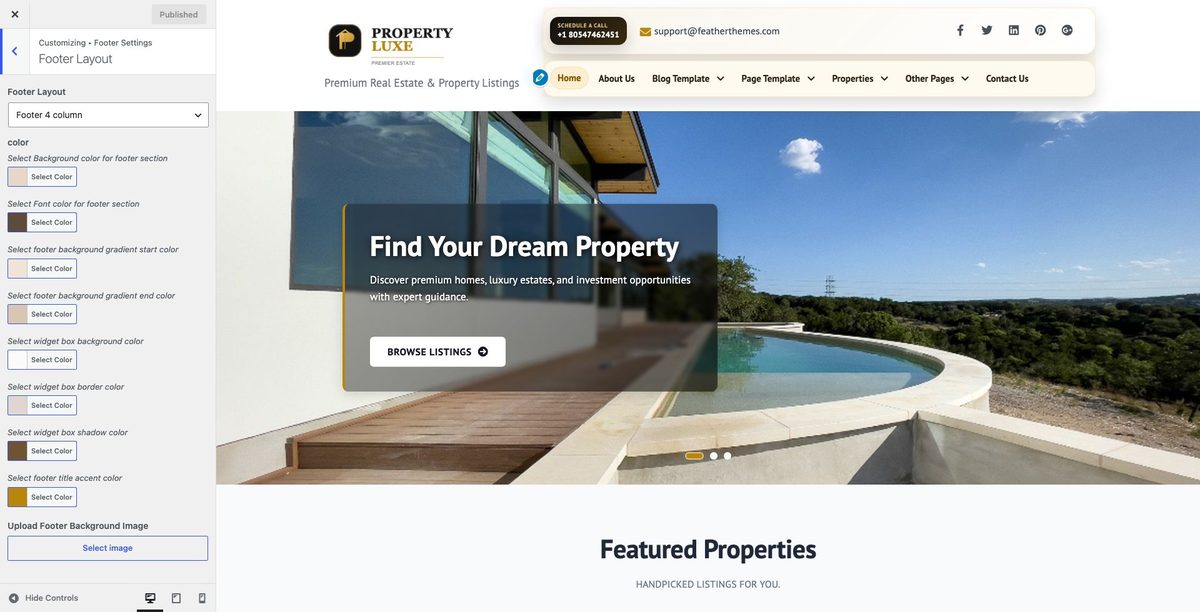
Configure footer layout, columns, contact info, copyright, and design credit under Appearance » Customize » Footer Settings.
12. Page Templates & Sidebars
The demo includes page templates for different sidebar layouts:
- Full Width — content without sidebar
- Left Sidebar / Right Sidebar — content with sidebar
- No Sidebar — centered content
- Contact Us — contact page with map and form areas
- Shortcodes Demo — live catalog of all theme shortcodes with copy buttons
Select a template under Page Attributes » Template when editing a page. Manage widget areas under Appearance » Widgets. See the Shortcodes chapter for the Shortcodes Demo page.
13. Shortcodes
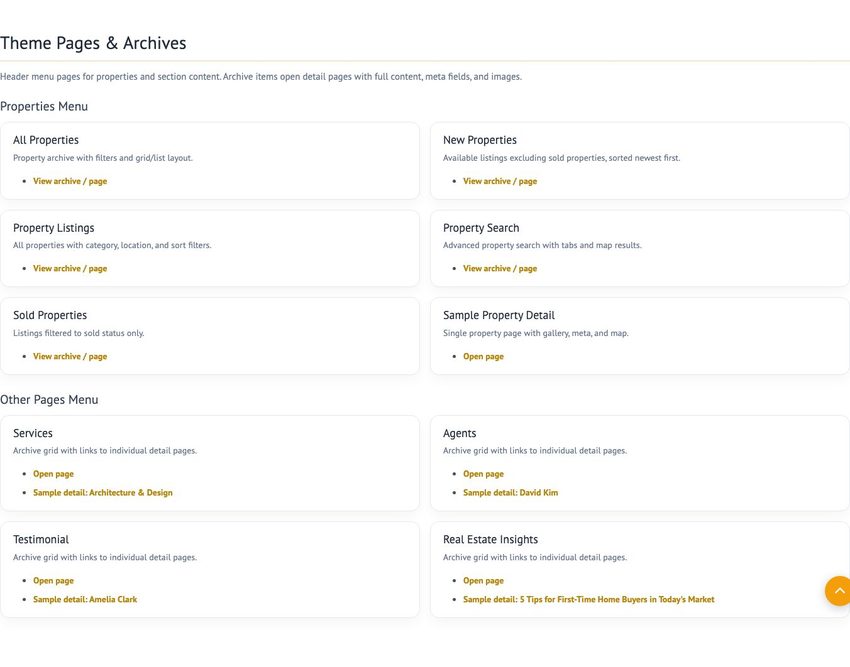
Visit the Shortcodes Demo page on your site for a live preview of every shortcode with copy buttons. The page includes a Theme Pages & Archives catalog linking to all property pages and section archives.

Theme Pages & Archives catalog:
Homepage Section Shortcodes
- Hero Search:
[plp_hero_search]
- Properties By Area:
[plp_properties_by_area]
- Featured Properties:
[plp_featured_properties]
- Best Quality Services:
[plp_best_quality_services]
- Latest Listings:
[plp_latest_listings]
- Expert Agents:
[plp_expert_agents]
- Testimonials:
[plp_testimonial]
- Latest Blog:
[plp_latest_blog]
- Contact Section:
[plp_contact]
- Prominent Projects:
[plp_prominent_projects]
- Newly Added Properties:
[plp_newly_added_properties]
- Top Highlighted Projects:
[plp_top_highlighted_projects]
- Real Estate Insights:
[plp_real_estate_insights]
- Market Performance:
[plp_market_performance]
- Attractive Areas:
[plp_attractive_areas]
- Featured Neighborhoods:
[plp_featured_neighborhoods]
- Who We Are:
[plp_who_we_are]
Layout & Content Shortcodes
- Section Title:
[section_title title="Featured" colortitle="Properties"]
- Heading:
[heading underline="yes" align="left"]Section Heading[/heading]
- Columns:
[column_content type="one_half"]Left column[/column_content][column_content type="one_half_last"]Right column[/column_content]
- Tabs:
[tabs][tab title="Tab 1"]Content 1[/tab][tab title="Tab 2"]Content 2[/tab][/tabs]
- Accordion:
[accordion][accordion_content title="Item 1"]Content[/accordion_content][/accordion]
- Feature List:
[feature_list icon="home" heading="Luxury Homes" desc="Premium listings."]
- Skill Bar:
[skill title="Client Satisfaction" percent="95" bgcolor="#b8860b"]
- Read More Link:
[readmore-link button="View Details" links="#" align="left"]
Social & Contact
- Social Icons:
[social_area][social icon="facebook" link="#"][social icon="twitter" link="#"][/social_area]
- Contact Form:
[contactform to_email="your@email.com" title="Contact Form"]
Footer & Utility
- Copyright:
[copyright_website firstcontent="© 2026 Property Luxe Pro. All rights reserved."]
- Design Credit:
[designby_website firstcontent="Design by" linktext="FeatherThemes" url="https://featherthemes.com"]
- Testimonials Listing:
[testimonials-listing show="3"]
- Search Form:
[searchform]
14. Mobile & Responsive Design
Property Luxe Pro is fully responsive and optimized for phones, tablets, and desktops. Layouts use fluid containers, flexible grids, and touch-friendly navigation so property listings, homepage sections, and inner pages remain readable on all screen sizes.
Breakpoints
| Viewport | Typical devices | Behavior |
|---|---|---|
| Desktop — 981px and above | Laptops, large tablets (landscape) | Horizontal primary menu, multi-column property grids, carousels show 3–4 items |
| Tablet — 768px to 980px | iPad, small laptops | Mobile menu drawer, 2-column listing grids, stacked header elements |
| Mobile — 767px and below | Phones | Single-column layouts, stacked hero search fields, full-width buttons, 1-item carousels |
Mobile Navigation
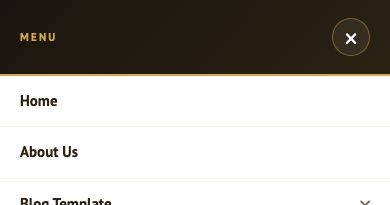
Below 981px width, the primary menu collapses into a hamburger toggle. Tap the menu icon to open a slide-in drawer with expandable sub-menus for Properties and Other Pages. Tap outside or the toggle again to close.
Homepage on Mobile
All homepage sections stack vertically with comfortable padding. Hero search filters, property cards, service grids, agent carousels, and testimonial sliders adapt to narrow screens.

Property Pages on Mobile
Listing archives, search filters, and single property pages use a single-column layout on mobile. Filter fields stack vertically; property cards, gallery, map, and similar listings remain fully accessible.


Responsive Features
- Fluid containers — content width scales with the viewport using responsive gutters
- Flexible images & video — media never overflows the screen width
- Touch-friendly controls — larger tap targets on mobile menu, carousels, and forms
- Owl Carousel sections — homepage carousels (listings, agents, projects) show fewer items on smaller screens
- Property search & listings — filter sidebar moves below or stacks on narrow viewports
- Contact forms — submit buttons expand to full width on mobile
- Section CPT archives — Services, Agents, Testimonials, and Insights archive grids become single-column cards
No extra setup is required — responsive behavior is built into the theme stylesheet (theme-responsive.css) and loads automatically on every page.